





Exchange API Setup

Exchange API Key Setup Guide

MOAHook relays your TradingView alerts to exchange APIs, so each user must create API keys directly inside the exchange account.

This guide follows the same order as the screenshots and explains why each permission, IP restriction, and key value matters.

Viewing on mobile

On each exchange detail page, you can switch between PC and mobile screenshots. Exchanges with mobile screenshots open the mobile flow first on small screens; exchanges without them use the PC flow.

API security settings

64.176.225.121

For exchanges that support IP restrictions, allow only this IP and never enable withdrawal permissions. For Korea Investment, match the key environment and HTS ID.

IP restriction or environment validation

Restrict supported exchanges to 64.176.225.121. For Korea Investment, validate paper/real environment and HTS ID.

Never enable withdrawals

Keep asset-transfer permissions such as Withdraw, Transfer, and Sub-account Manage disabled.

Register keys immediately

Secret Keys are often shown only once, so register them in MOABOT right after issuance.

OKX

OKX API key setup

Create the key in the order shown below, then enter the values in MOABOT Dashboard > Settings > API. Even if the exchange screen changes slightly, look for API Management, API keys, or API and connections.

Values to enter in MOABOT

API KeySecret KeyPassphrase

Recommended settings

  • API trading
  • Read + Trade
  • IP address allowlist: 64.176.225.121
  • Passphrase that satisfies the 8-32 character rule

Cautions

  • Passphrase is a value you enter in OKX and must register exactly the same in MOABOT.
  • Do not select Withdraw permission.

Capture View

Follow the PC web screenshots

This is the standard desktop-browser flow for opening the exchange API management screen and creating a key. The wider screen makes permissions and IP restrictions easier to verify.

Desktop opens the PC flow first. On small screens, mobile screenshots open first when available.

01OKX · PC web

Open API and connections from the profile menu

What to do on this screen

Open the top-right account menu and enter API and connections.

Checkpoints

  • OKX shows API and connections in the settings top tabs.
  • Proceed from Main account.

Next step: Click Create API key

Swipe horizontally to inspect the desktop screenshot.

Open
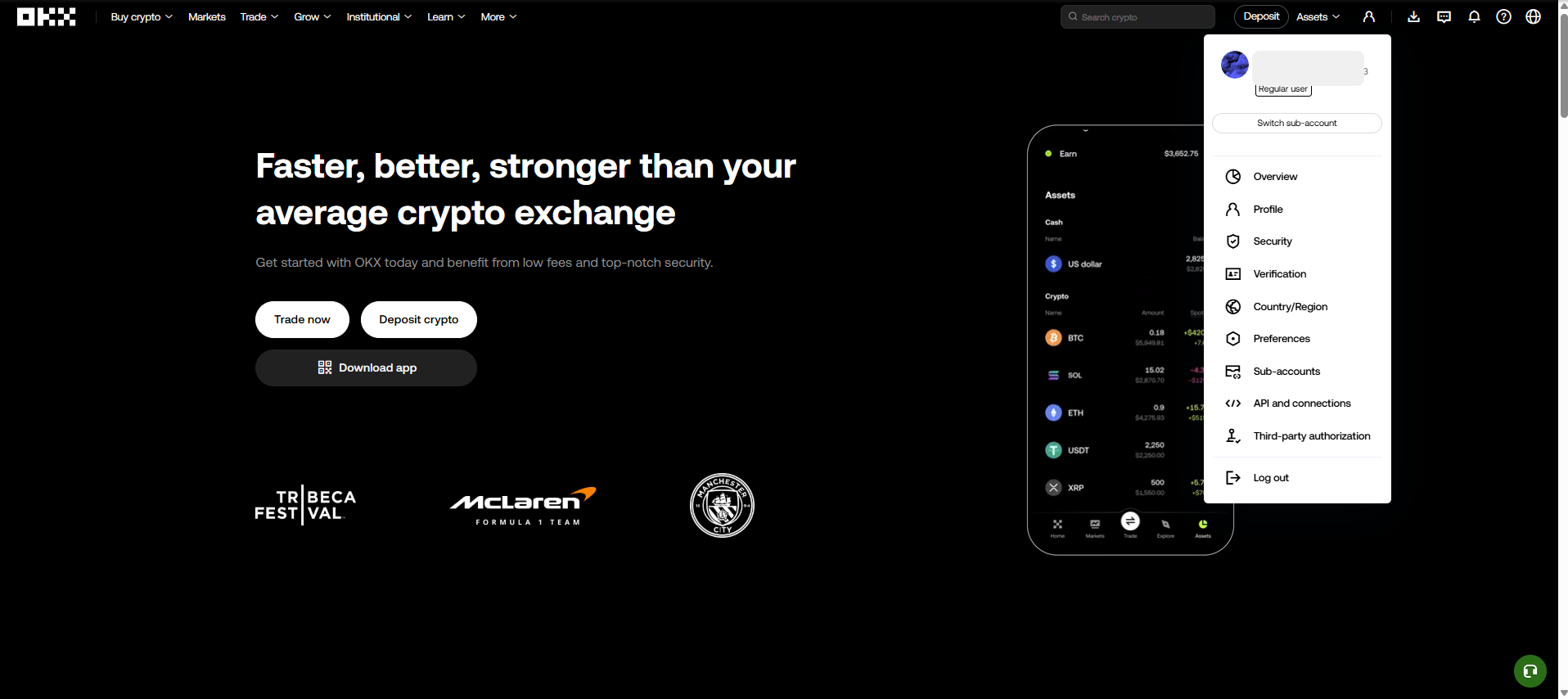
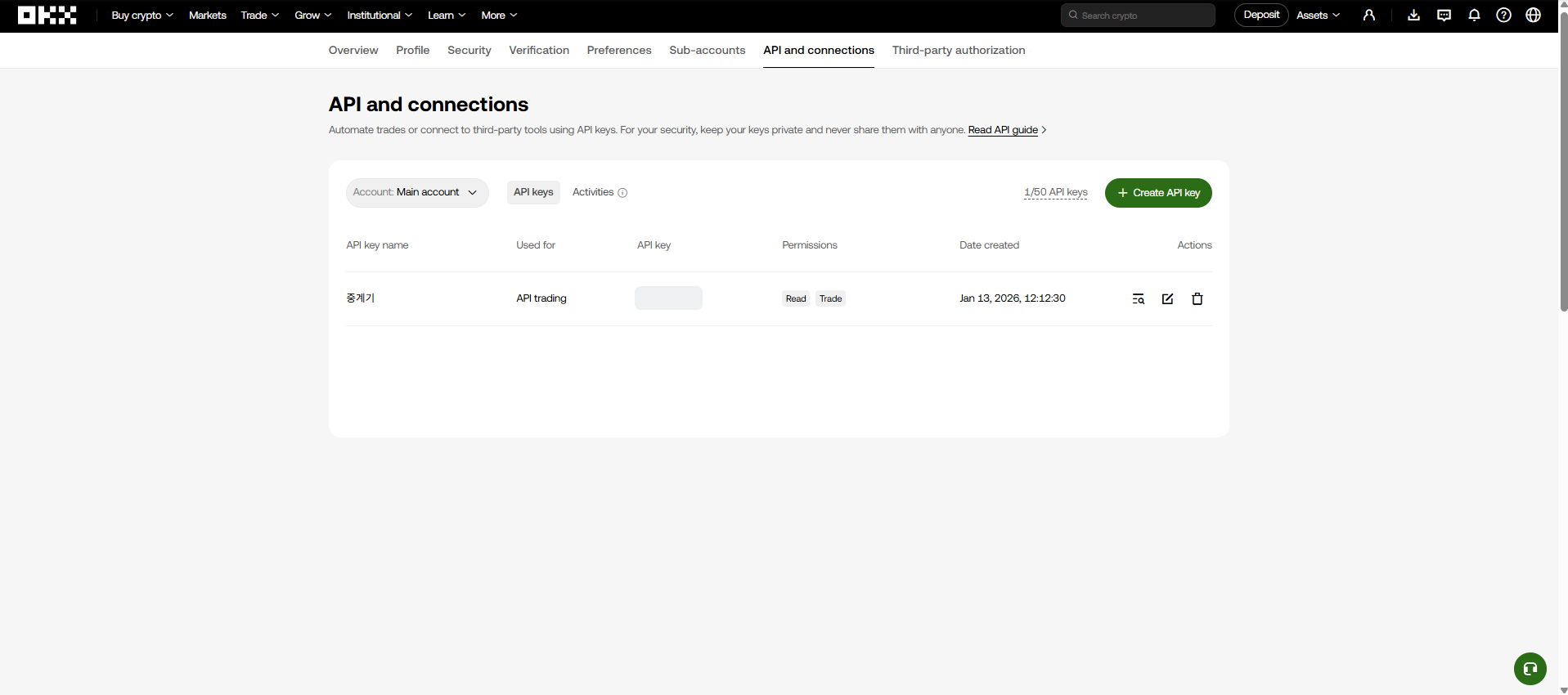
OKX PC web API setup step 1: Open API and connections from the profile menu
Find the menu or field that matches the step title in the screenshot, then follow the checkpoints on the left.
02OKX · PC web

Click Create API key

What to do on this screen

On API and connections, click Create API key to start creating a new API.

Checkpoints

  • Create a separate MOABOT key instead of reusing an existing API.
  • Confirm that the API Keys tab is selected.

Next step: Enter API trading, IP, permissions, and Passphrase

Swipe horizontally to inspect the desktop screenshot.

Open
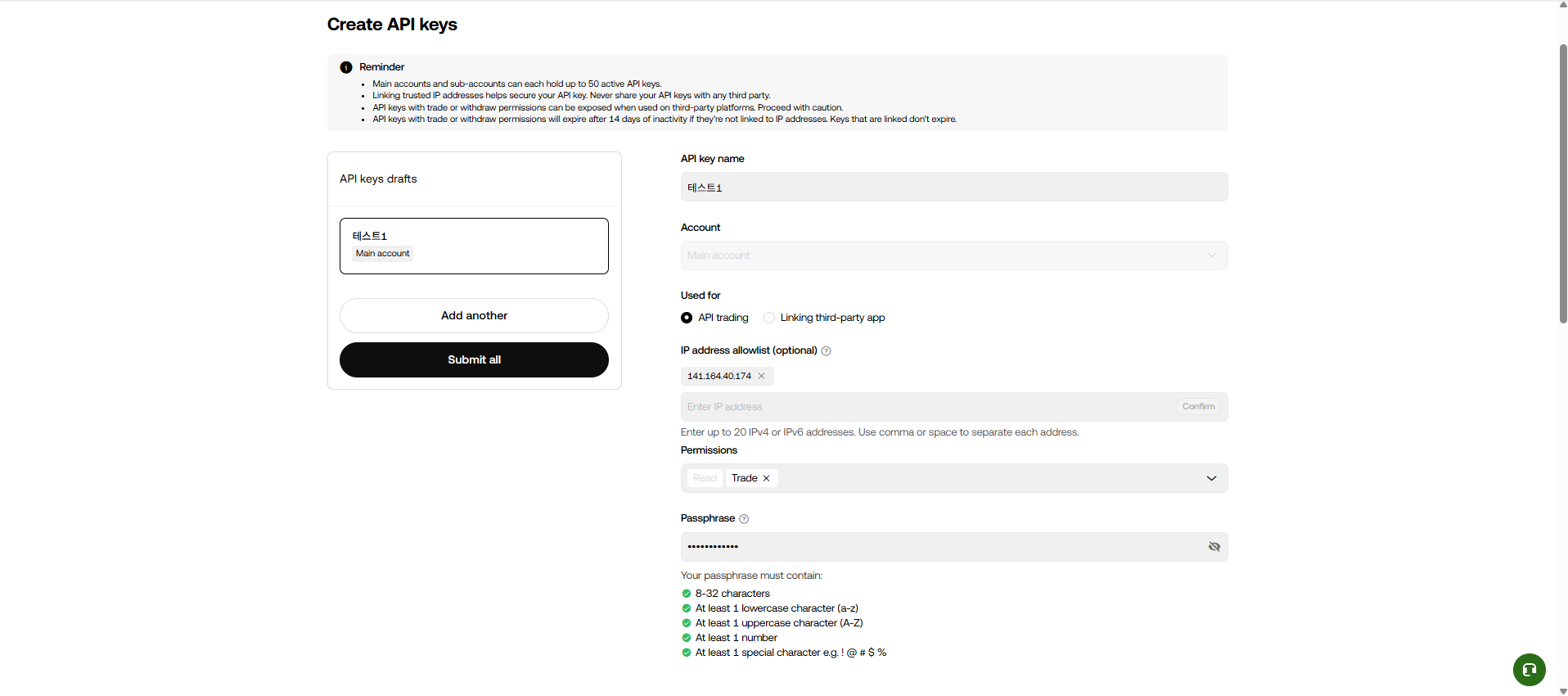
OKX PC web API setup step 2: Click Create API key
Find the menu or field that matches the step title in the screenshot, then follow the checkpoints on the left.
03OKX · PC web

Enter API trading, IP, permissions, and Passphrase

What to do on this screen

Select API trading, enter 64.176.225.121 in IP allowlist, and select only Read and Trade permissions.

Checkpoints

  • Choose API trading for Used for.
  • Only Read and Trade are needed.
  • The same Passphrase must be entered in MOABOT.
  • For OKX Copy Trading mode, confirm lead-trader status and leading instruments in OKX first.
OKX Passphrase is a separate value you create with 8-32 characters. It is different from the API Secret.

Next step: Complete passkey security check

Swipe horizontally to inspect the desktop screenshot.

Open
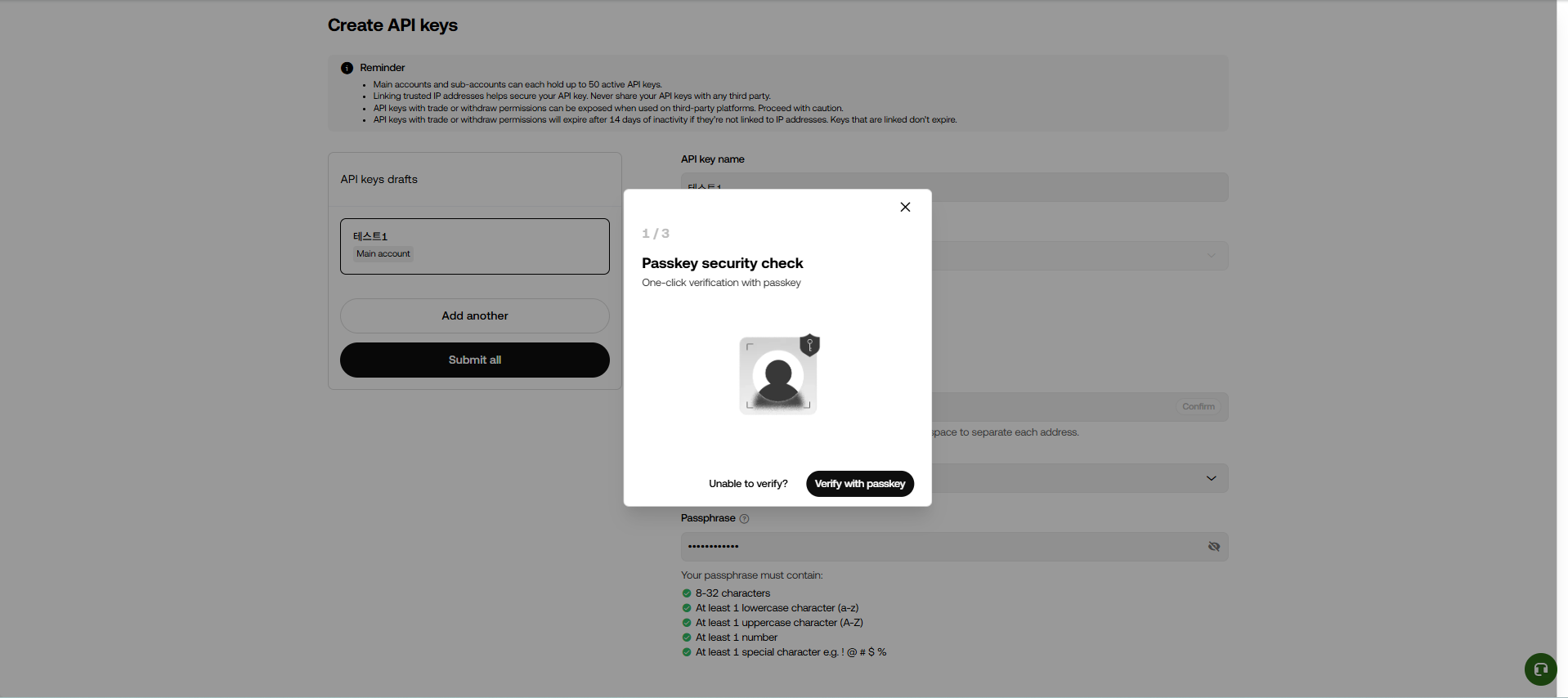
OKX PC web API setup step 3: Enter API trading, IP, permissions, and Passphrase
Find the menu or field that matches the step title in the screenshot, then follow the checkpoints on the left.
04OKX · PC web

Complete passkey security check

What to do on this screen

After Submit all, complete device verification when Passkey security check appears.

Checkpoints

  • Check whether the browser blocked the passkey popup.
  • The API key is created only after device verification is completed.

Next step: Retry passkey verification

Swipe horizontally to inspect the desktop screenshot.

Open
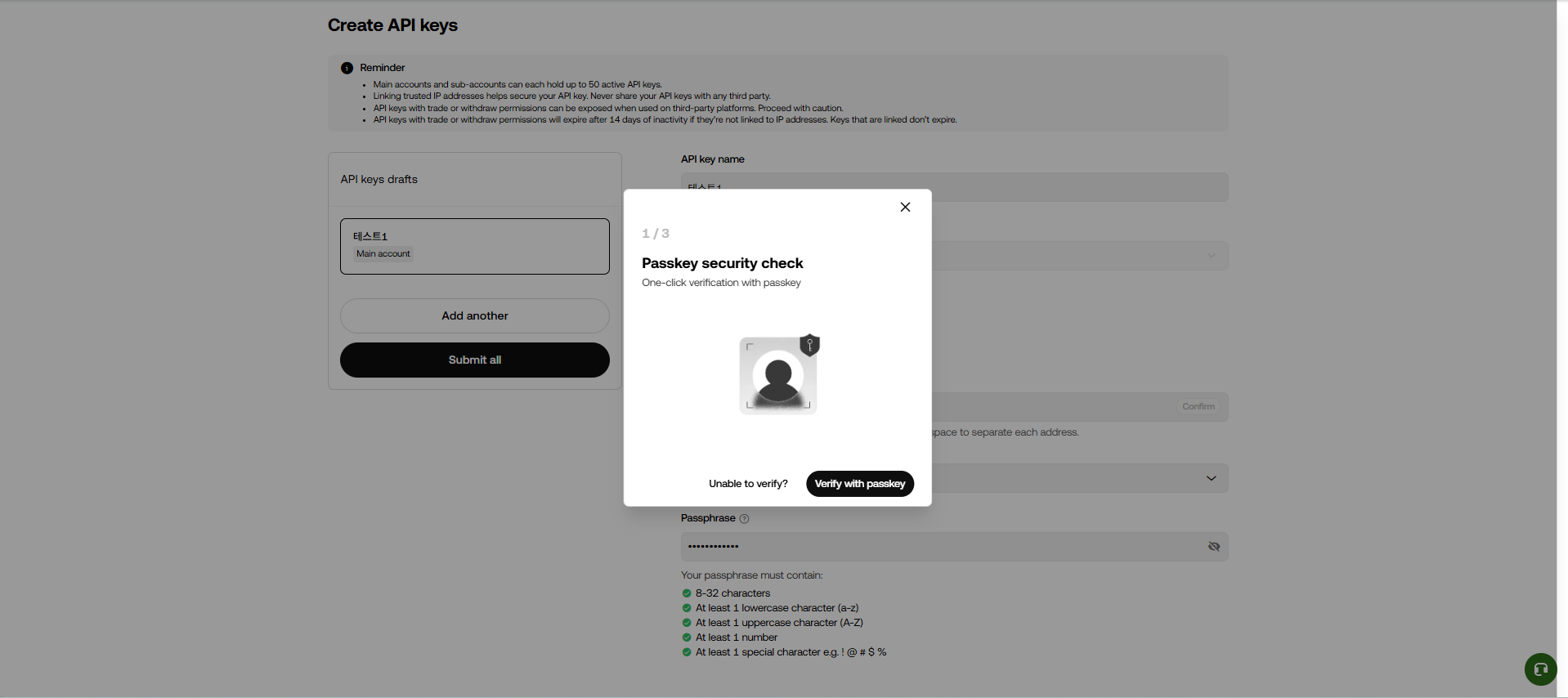
OKX PC web API setup step 4: Complete passkey security check
Find the menu or field that matches the step title in the screenshot, then follow the checkpoints on the left.
05OKX · PC web

Retry passkey verification

What to do on this screen

If verification fails once, retry in the same window or prepare another verification method.

Checkpoints

  • You do not need to re-enter all API settings after one failed attempt.
  • If the passkey is outdated, go to the reset screen.

Next step: Check the Passkeys screen

Swipe horizontally to inspect the desktop screenshot.

Open
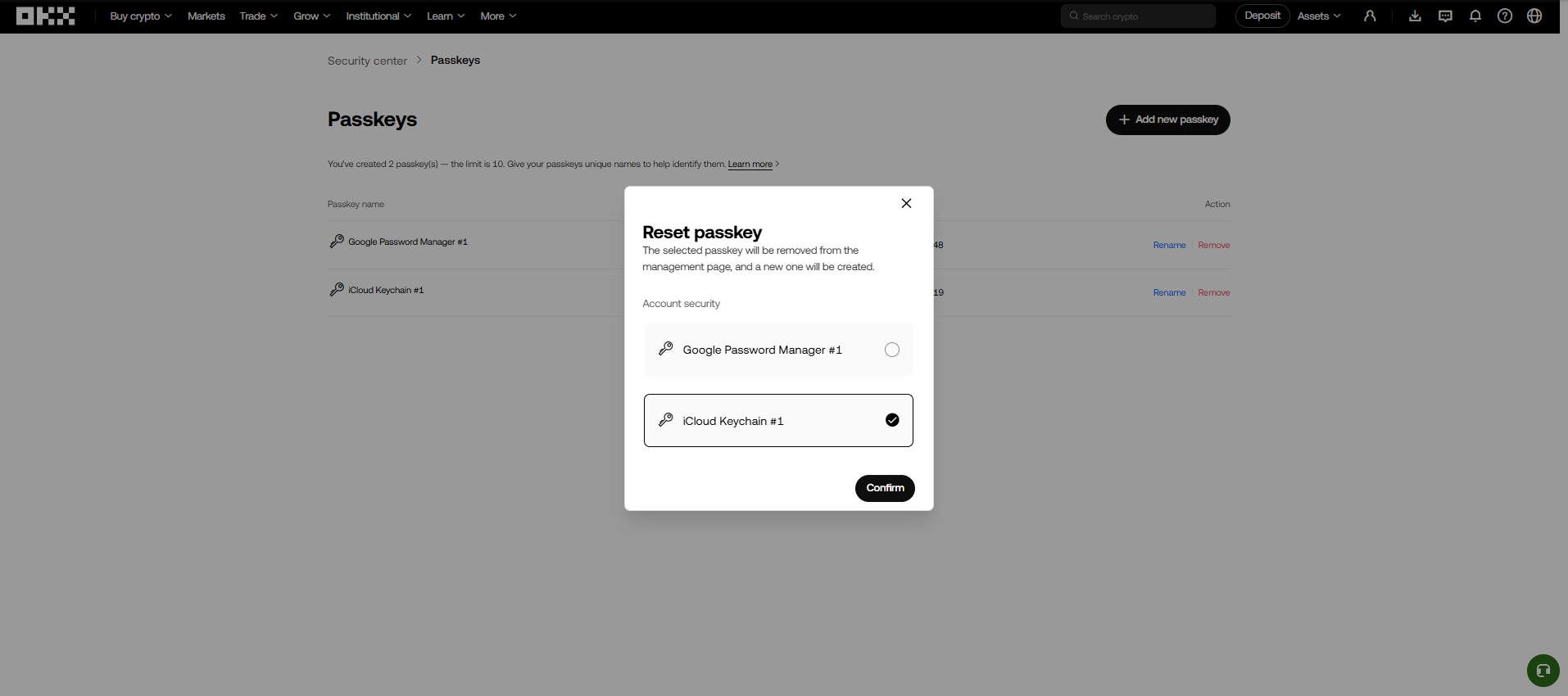
OKX PC web API setup step 5: Retry passkey verification
Find the menu or field that matches the step title in the screenshot, then follow the checkpoints on the left.
06OKX · PC web

Check the Passkeys screen

What to do on this screen

If passkey issues continue, check registered passkeys in Security center > Passkeys.

Checkpoints

  • Confirm that the passkey can be used on the current browser or device.
  • Remove unused passkeys if needed.

Next step: Reset passkey if needed

Swipe horizontally to inspect the desktop screenshot.

Open
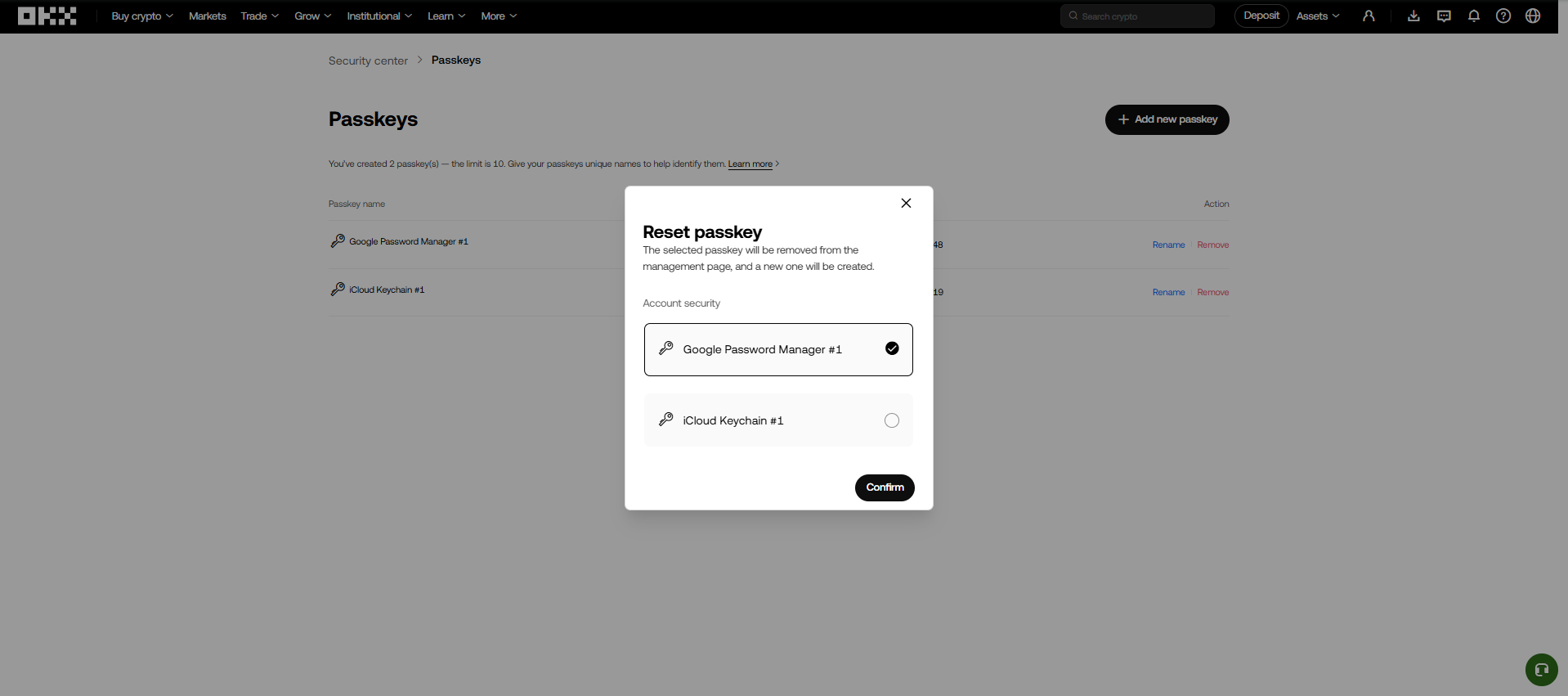
OKX PC web API setup step 6: Check the Passkeys screen
Find the menu or field that matches the step title in the screenshot, then follow the checkpoints on the left.
07OKX · PC web

Reset passkey if needed

What to do on this screen

Use Reset passkey or Rename/Remove to clean up usable passkeys, then return to API creation.

Checkpoints

  • Passkey reset may require additional verification under OKX security policy.
  • After reset, return to API creation and verify the same values.

Next step: Verify passkey with phone number

Swipe horizontally to inspect the desktop screenshot.

Open
OKX PC web API setup step 7: Reset passkey if needed
Find the menu or field that matches the step title in the screenshot, then follow the checkpoints on the left.
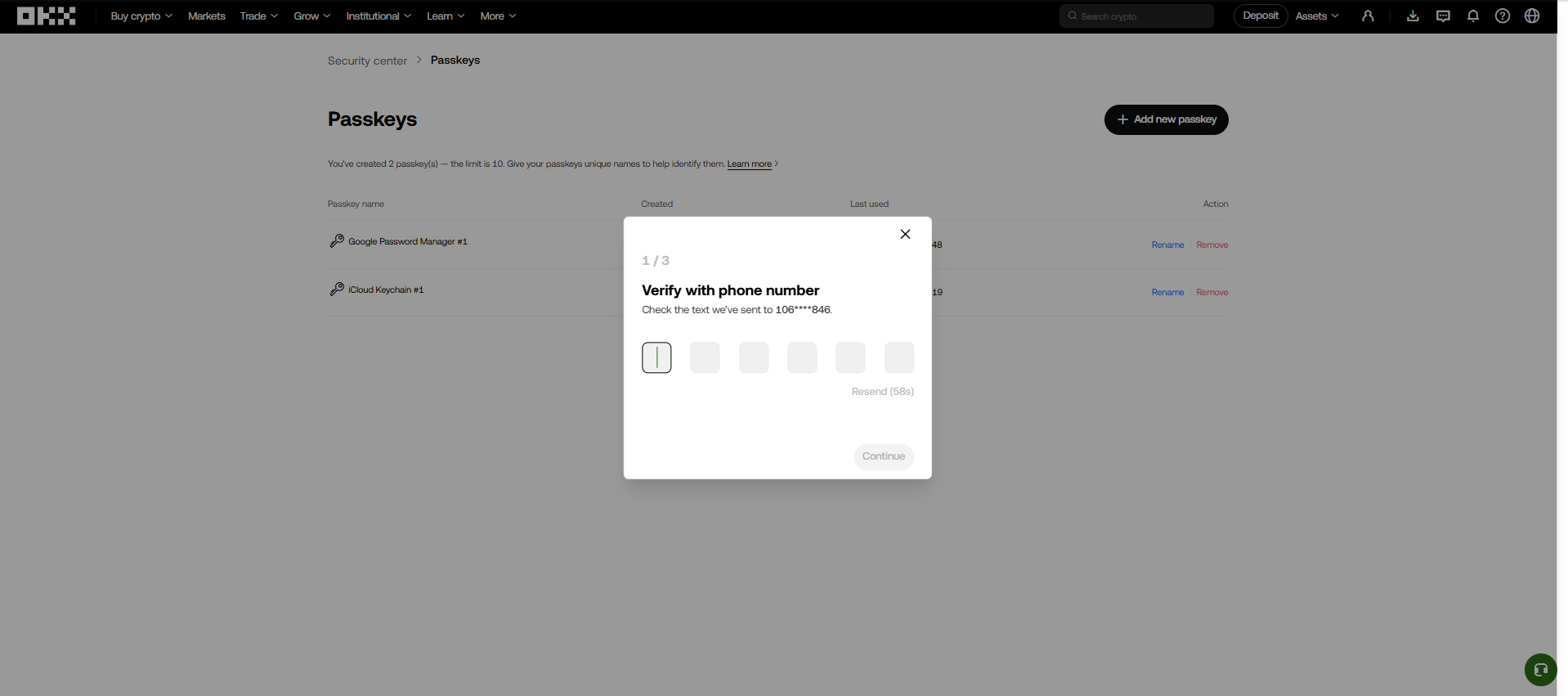
08OKX · PC web

Verify passkey with phone number

What to do on this screen

If OKX asks for phone verification, finish security confirmation through Verify with phone number.

Checkpoints

  • Enter the phone verification code accurately.
  • After verification, return to API and connections.

Next step: Confirm the created API

Swipe horizontally to inspect the desktop screenshot.

Open
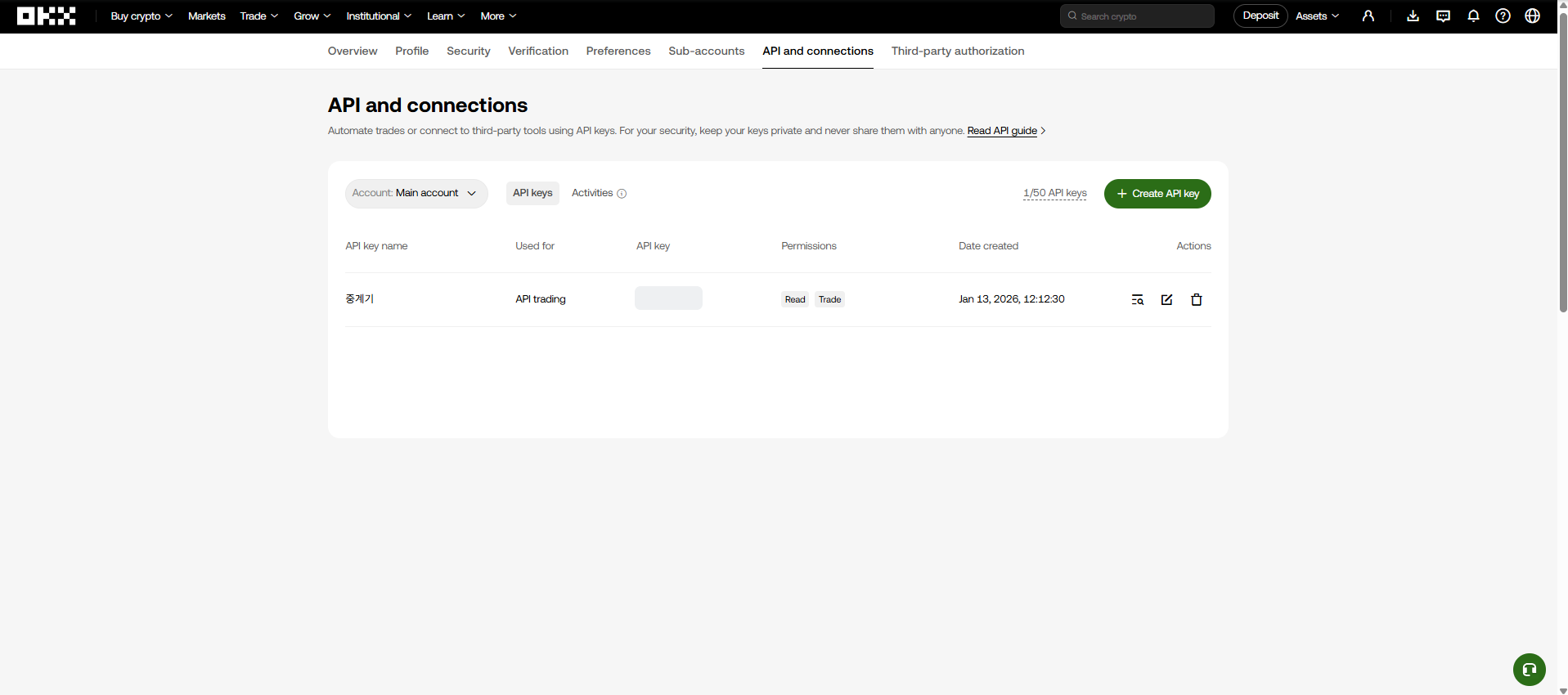
OKX PC web API setup step 8: Verify passkey with phone number
Find the menu or field that matches the step title in the screenshot, then follow the checkpoints on the left.
09OKX · PC web

Confirm the created API

What to do on this screen

When the new key appears in API and connections, register API Key, Secret Key, and Passphrase in MOABOT.

Checkpoints

  • Confirm that Permissions shows Read and Trade.
  • Confirm that the key has an IP allowlist.

Swipe horizontally to inspect the desktop screenshot.

Open
OKX PC web API setup step 9: Confirm the created API
Find the menu or field that matches the step title in the screenshot, then follow the checkpoints on the left.

Next Step

Register the issued key in MOABOT

Open Settings in the MOABOT dashboard, choose the API tab, then enter each exchange value such as API Key, Secret Key, Passphrase, or Korea Investment account and HTS values. Telegram verification may be required before saving.

Open MOAHook dashboard
Support