





Exchange API Setup

Exchange API Key Setup Guide

MOAHook relays your TradingView alerts to exchange APIs, so each user must create API keys directly inside the exchange account.

This guide follows the same order as the screenshots and explains why each permission, IP restriction, and key value matters.

Viewing on mobile

On each exchange detail page, you can switch between PC and mobile screenshots. Exchanges with mobile screenshots open the mobile flow first on small screens; exchanges without them use the PC flow.

API security settings

64.176.225.121

For exchanges that support IP restrictions, allow only this IP and never enable withdrawal permissions. For Korea Investment, match the key environment and HTS ID.

IP restriction or environment validation

Restrict supported exchanges to 64.176.225.121. For Korea Investment, validate paper/real environment and HTS ID.

Never enable withdrawals

Keep asset-transfer permissions such as Withdraw, Transfer, and Sub-account Manage disabled.

Register keys immediately

Secret Keys are often shown only once, so register them in MOABOT right after issuance.

Upbit

Upbit API key setup

Create the key in the order shown below, then enter the values in MOABOT Dashboard > Settings > API. Even if the exchange screen changes slightly, look for API Management, API keys, or API and connections.

Values to enter in MOABOT

Access KeySecret Key

Recommended settings

  • View assets
  • View orders
  • Place orders
  • Registered IP address: 64.176.225.121

Cautions

  • Copy the Secret Key immediately because it is shown only on the completion screen.
  • Withdrawal view, withdrawal, deposit view, and deposit permissions are not needed for MOABOT.

Capture View

Follow the PC web screenshots

This is the standard desktop-browser flow for opening the exchange API management screen and creating a key. The wider screen makes permissions and IP restrictions easier to verify.

Desktop opens the PC flow first. On small screens, mobile screenshots open first when available. This exchange currently has no mobile screenshots, so the PC flow is shown.

01Upbit · PC web

Open Open API guide from More services

What to do on this screen

Open More services at the top of Upbit and select Open API guide.

Checkpoints

  • Confirm that you are signed in to your exchange account.
  • Find Open API guide or Open API management.

Next step: Go to Open API usage

Swipe horizontally to inspect the desktop screenshot.

Open
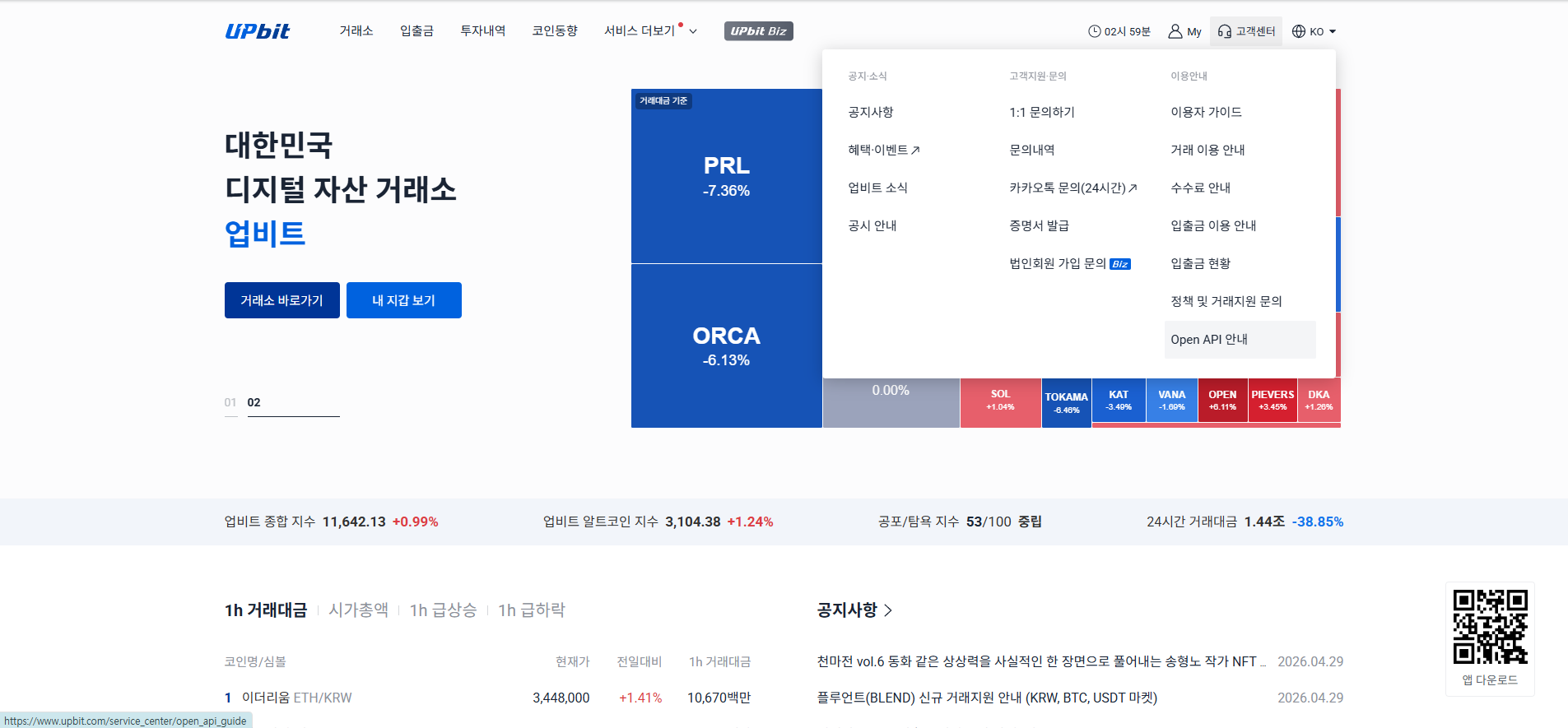
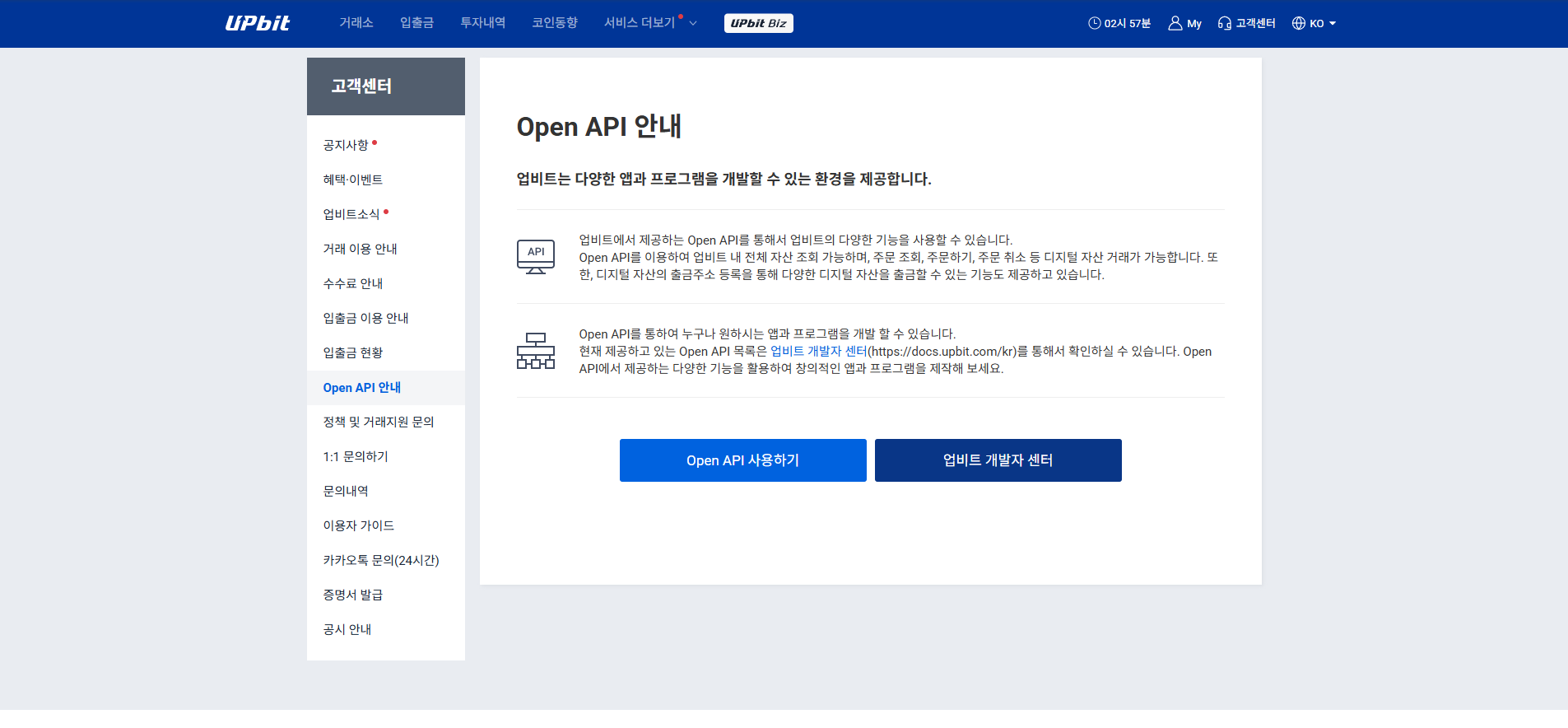
Upbit PC web API setup step 1: Open Open API guide from More services
Find the menu or field that matches the step title in the screenshot, then follow the checkpoints on the left.
02Upbit · PC web

Go to Open API usage

What to do on this screen

From the Open API guide screen, move to the API usage or management screen.

Checkpoints

  • Read the notice before issuing an API key.
  • Even if you already have a key, creating a separate MOABOT key is safer.

Next step: Enter permissions, IP, and consent items

Swipe horizontally to inspect the desktop screenshot.

Open
Upbit PC web API setup step 2: Go to Open API usage
Find the menu or field that matches the step title in the screenshot, then follow the checkpoints on the left.
03Upbit · PC web

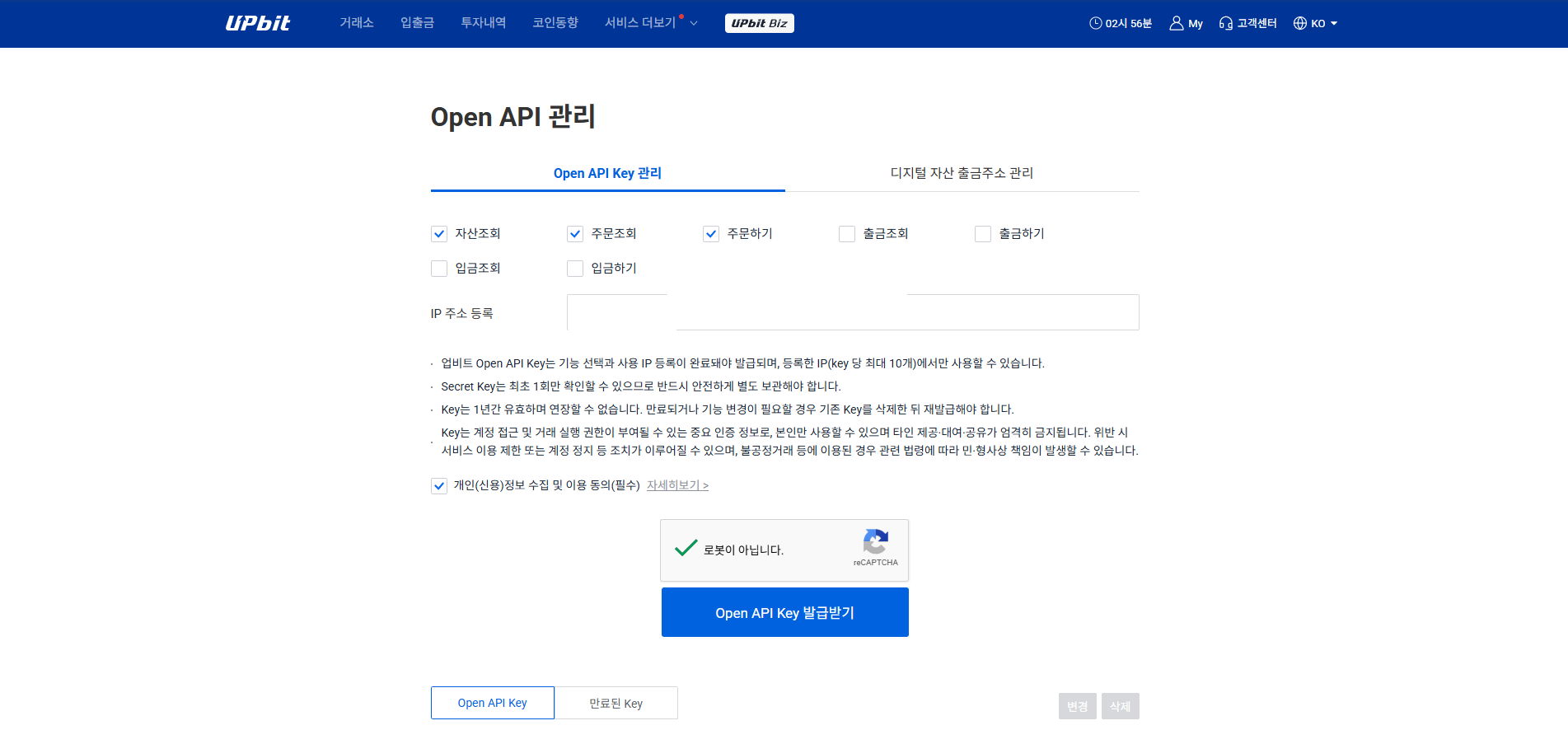
Enter permissions, IP, and consent items

What to do on this screen

Select View assets, View orders, and Place orders, then enter 64.176.225.121 in IP address registration. Complete required consent and captcha.

Checkpoints

  • Do not select withdrawal-related permissions.
  • Enter only 64.176.225.121 for the IP address.
  • The issue button becomes active only after the captcha is completed.

Next step: Confirm the IP registration notice

Swipe horizontally to inspect the desktop screenshot.

Open
Upbit PC web API setup step 3: Enter permissions, IP, and consent items
Find the menu or field that matches the step title in the screenshot, then follow the checkpoints on the left.
04Upbit · PC web

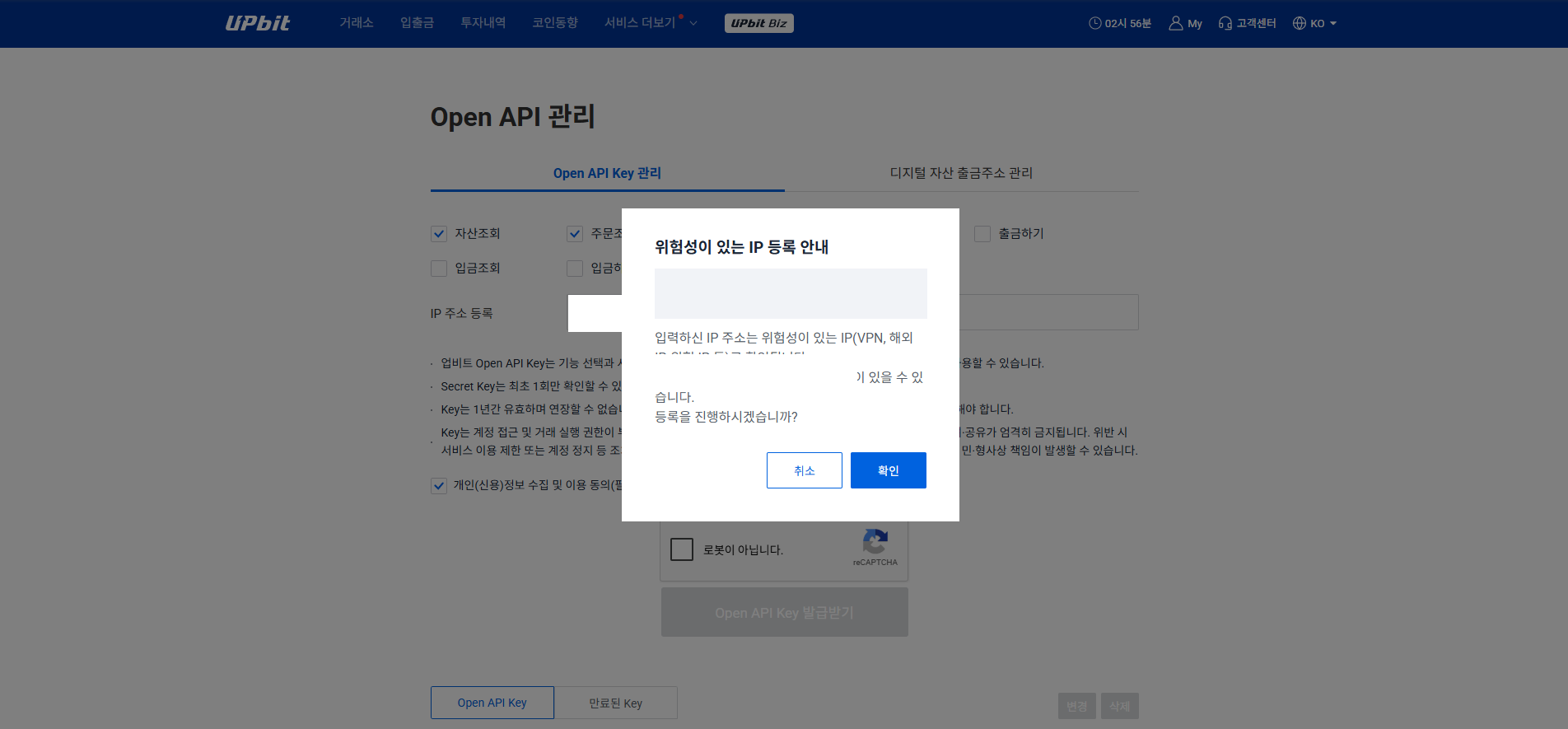
Confirm the IP registration notice

What to do on this screen

When the IP registration popup appears, confirm that the IP you entered is correct and continue.

Checkpoints

  • Even if a VPN or overseas IP warning appears, this step registers the MOABOT server IP.
  • If the value is wrong, cancel and enter it again.

Next step: Select identity verification method

Swipe horizontally to inspect the desktop screenshot.

Open
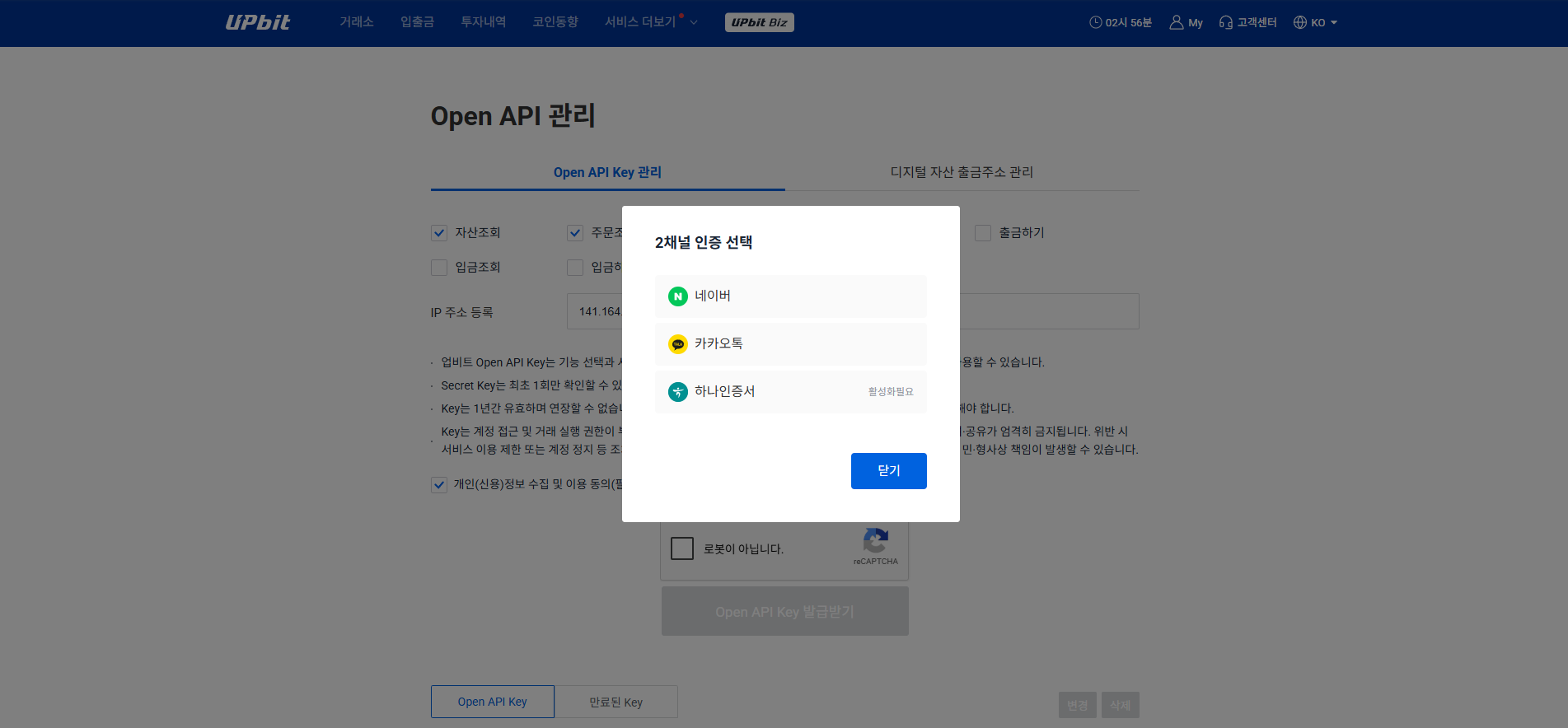
Upbit PC web API setup step 4: Confirm the IP registration notice
Find the menu or field that matches the step title in the screenshot, then follow the checkpoints on the left.
05Upbit · PC web

Select identity verification method

What to do on this screen

Choose the identity verification method required by Upbit and complete verification.

Checkpoints

  • Verification methods may vary by account settings.
  • If verification is interrupted, key issuance will not complete.

Next step: Copy Access Key and Secret Key

Swipe horizontally to inspect the desktop screenshot.

Open
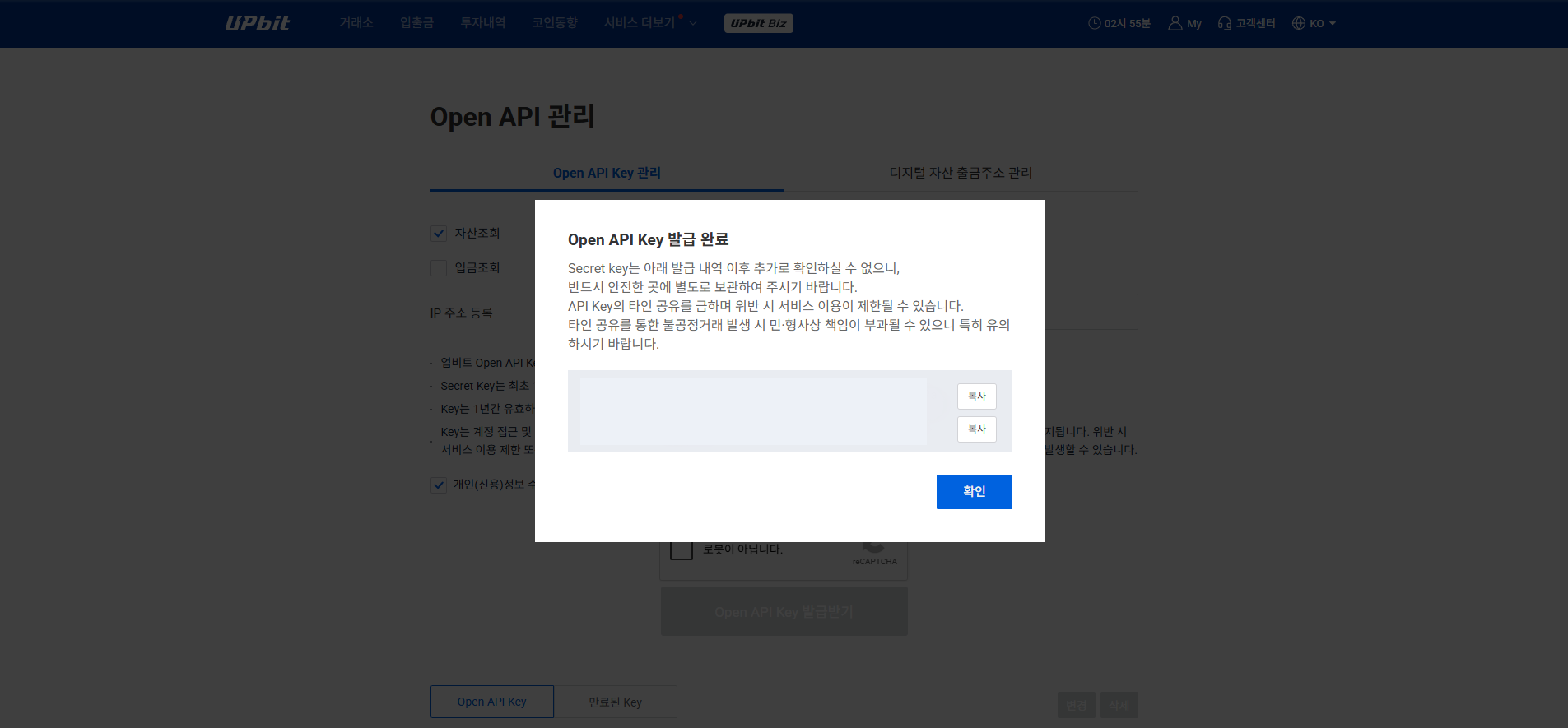
Upbit PC web API setup step 5: Select identity verification method
Find the menu or field that matches the step title in the screenshot, then follow the checkpoints on the left.
06Upbit · PC web

Copy Access Key and Secret Key

What to do on this screen

From the completion popup, copy Access Key and Secret Key and register them in the Upbit section of MOABOT.

Checkpoints

  • Secret Key cannot be viewed again later, so save it immediately.
  • Both values are required for integration.
Upbit displays API Key as Access Key.

Next step: Check permissions and allowed IP in the list

Swipe horizontally to inspect the desktop screenshot.

Open
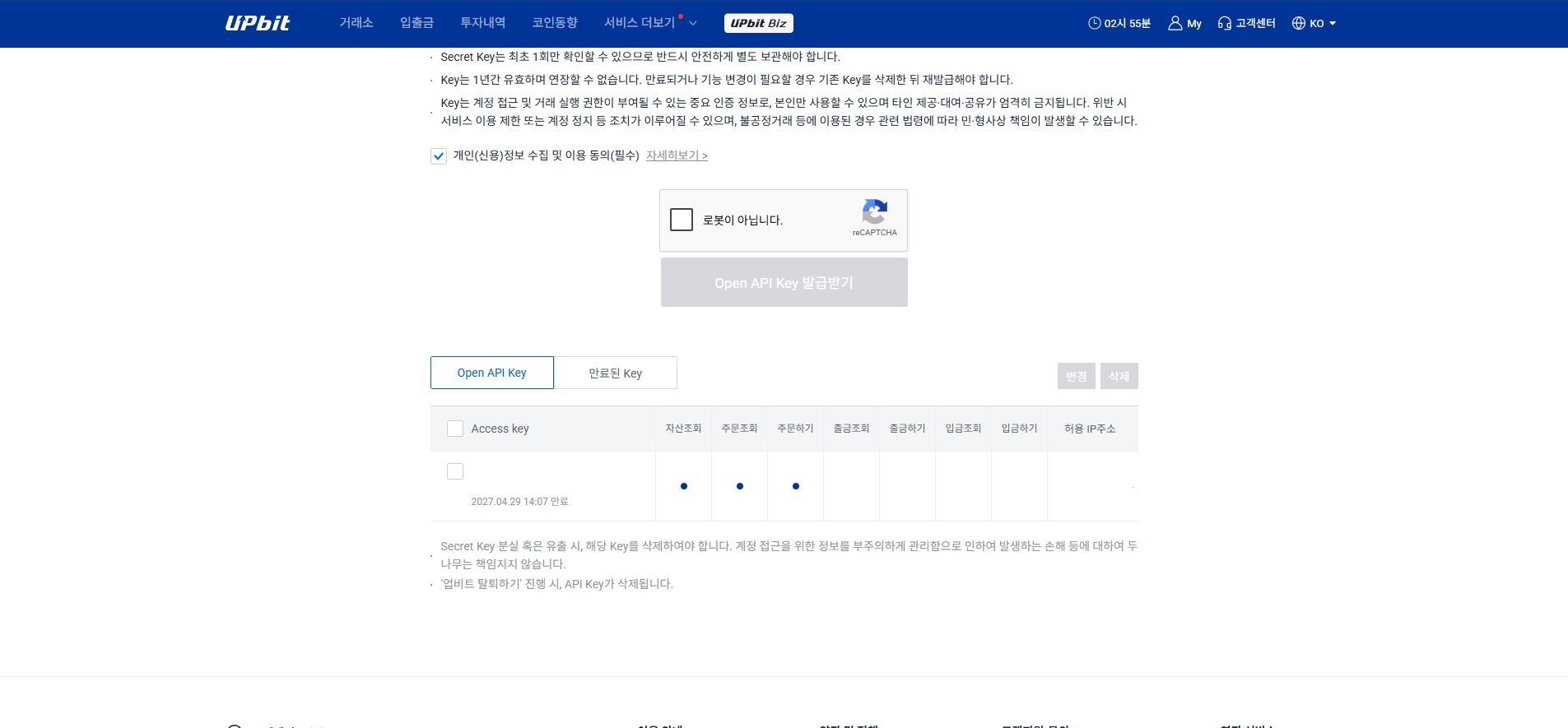
Upbit PC web API setup step 6: Copy Access Key and Secret Key
Find the menu or field that matches the step title in the screenshot, then follow the checkpoints on the left.
07Upbit · PC web

Check permissions and allowed IP in the list

What to do on this screen

In the Open API Key list, confirm that the created key has the correct permissions and allowed IP address.

Checkpoints

  • Only View assets, View orders, and Place orders should be enabled.
  • Check expiration date and IP restriction status together.

Swipe horizontally to inspect the desktop screenshot.

Open
Upbit PC web API setup step 7: Check permissions and allowed IP in the list
Find the menu or field that matches the step title in the screenshot, then follow the checkpoints on the left.

Next Step

Register the issued key in MOABOT

Open Settings in the MOABOT dashboard, choose the API tab, then enter each exchange value such as API Key, Secret Key, Passphrase, or Korea Investment account and HTS values. Telegram verification may be required before saving.

Open MOAHook dashboard
Support