





Strategy Connection Guide

Hyper RSI Setup Guide

The full walkthrough for connecting the Hyper RSI indicator on TradingView to the MOABOT webhook.

An RSI + DCA combo strategy — split entries in oversold/overbought zones and 3-stage take-profit to manage average cost.

This guide is a reference only

All settings shown on screen are examples and do not guarantee profits. Adjust based on your capital, risk tolerance, and trading style.

MOABOT is a trading-signal automation tool, not investment advice.

Read first

Before you follow this guide

Every number on screen is an example used to demonstrate the flow. Before live trading, double-check that values match your own capital, strategy, and risk limits.

Reference Guide

This document is a reference for learning how to use MOABOT. Following the same settings will not produce the same results.

Use Your Own Settings

The example values are only a starting point. Adjust inputs to fit your capital, trading timeframe, and risk tolerance.

No Profit Guarantee

Backtest results based on past data do not guarantee future profits. Always consider the possibility of loss.

You Are Responsible

Exchange API permissions, fund management, and alert-setup accuracy are all the user's responsibility. If in doubt, validate with a small amount first.

Spot Funding Notice

Spot has no leverage — you need enough capital

Minimum Order Size

Exchange Policy

Each coin has its own minimum lot size (e.g. BTC 0.0001) and minimum order amount — differs by exchange.

3-Stage Take Profit

TP1 / TP2 / TP3

Hyper RSI splits take-profit into 3 stages. Each stage must clear the exchange minimum to work properly.

Korean Exchange Standard

Min ~16,000 KRW per TP cycle

Upbit / Bithumb policy requires ~5,000 KRW per order. To complete a 3-stage TP cycle, ~16,000 KRW or more should sit on the TP lines.

This is exchange policy — not something MOABOT can control

If TP orders are rejected due to insufficient funds, position cleanup will not happen correctly. Before starting, verify that your capital can fully cover a 3-stage TP cycle.

Overseas exchanges (OKX / Binance / Bybit / Bitget) also have per-coin minimum order amounts (typically 5–10 USDT). Korean exchanges are stricter.

Bithumb

Connect Hyper RSI on Bithumb

A one-pass walkthrough: enable MOABOT webhook → open TradingView chart → configure indicator/alert → connect the webhook URL.

Symbol for this exchange

BTC/KRW

Estimated time

First setup: ~10–15 min

After that: ~3 min

Requirements

  • MOABOT indicator access enabled
  • Bithumb API key registered
  • TradingView account (free tier OK)
01Bithumb · Hyper RSI

Open the MOABOT webhook dashboard

What to do on this screen

On the My Page screen, click "Open Webhook Dashboard" to enter the MOAHook view.

Checkpoints

  • You must be logged in with an account that has indicator access enabled.
  • The MOAHook card on the dashboard leads to the same screen.

Next: Open exchange settings

Swipe horizontally to view the full capture.

Open
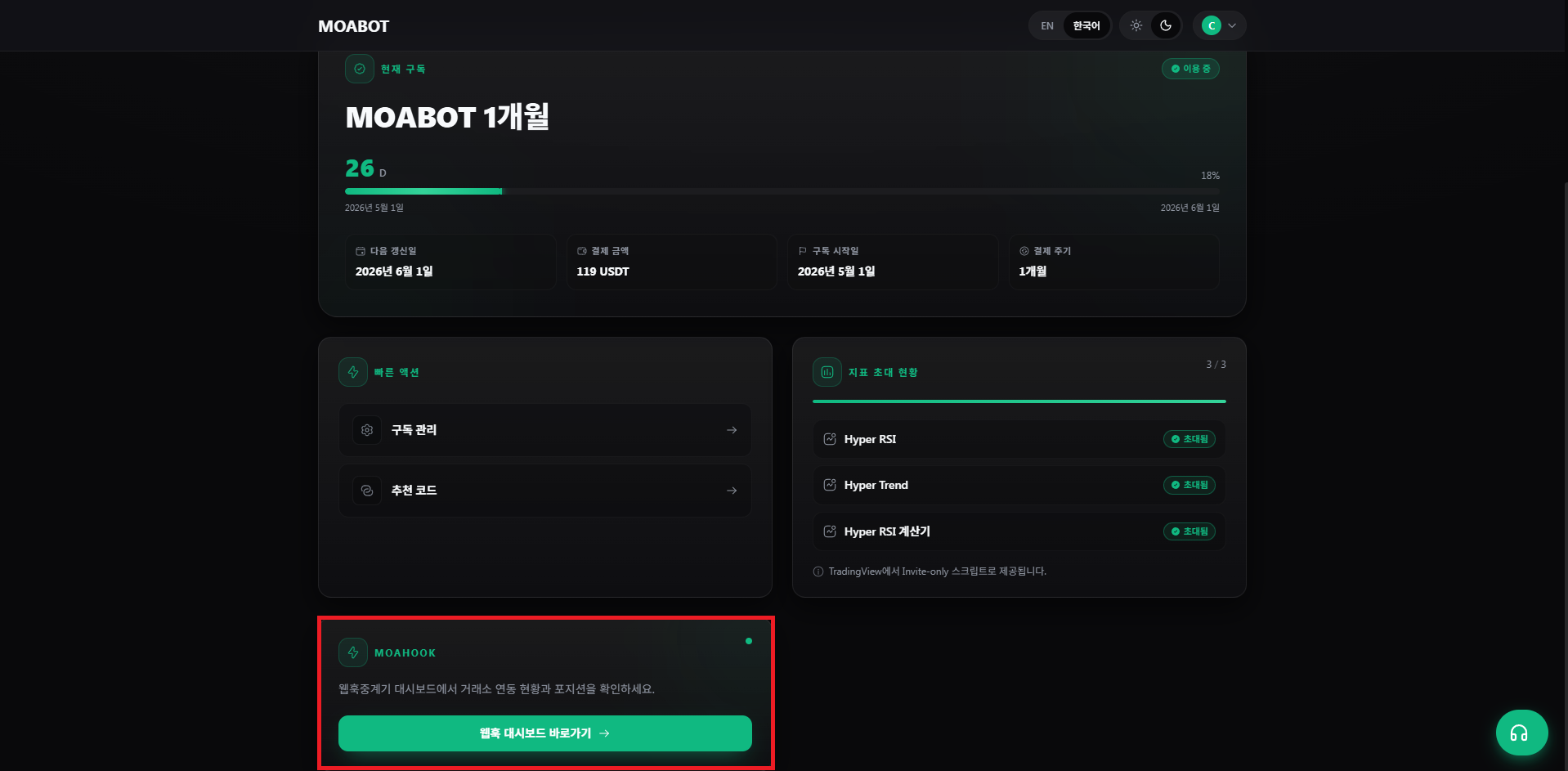
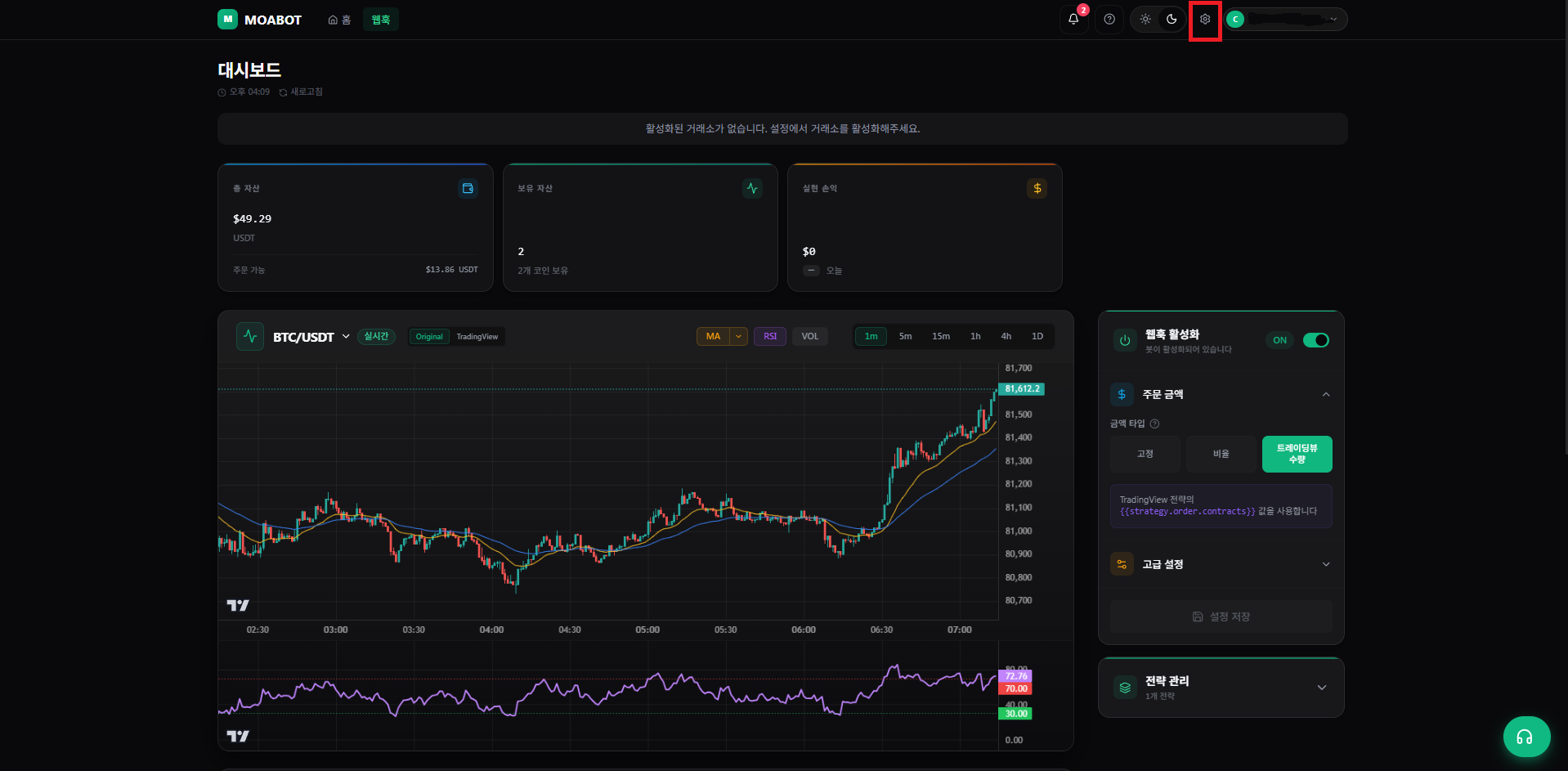
Bithumb Hyper RSI 01 Open the MOABOT webhook dashboard
Find the menu matching the step title on the capture, then walk the checkpoints on the left in order.
02Bithumb · Hyper RSI

Open exchange settings

What to do on this screen

Click the gear (settings) icon at the top-right of the webhook dashboard.

Checkpoints

  • Per-exchange enable toggles and webhook ON/OFF are managed in a single panel.

Next: Enable Bithumb spot

Swipe horizontally to view the full capture.

Open
Bithumb Hyper RSI 02 Open exchange settings
Find the menu matching the step title on the capture, then walk the checkpoints on the left in order.
03Bithumb · Hyper RSI

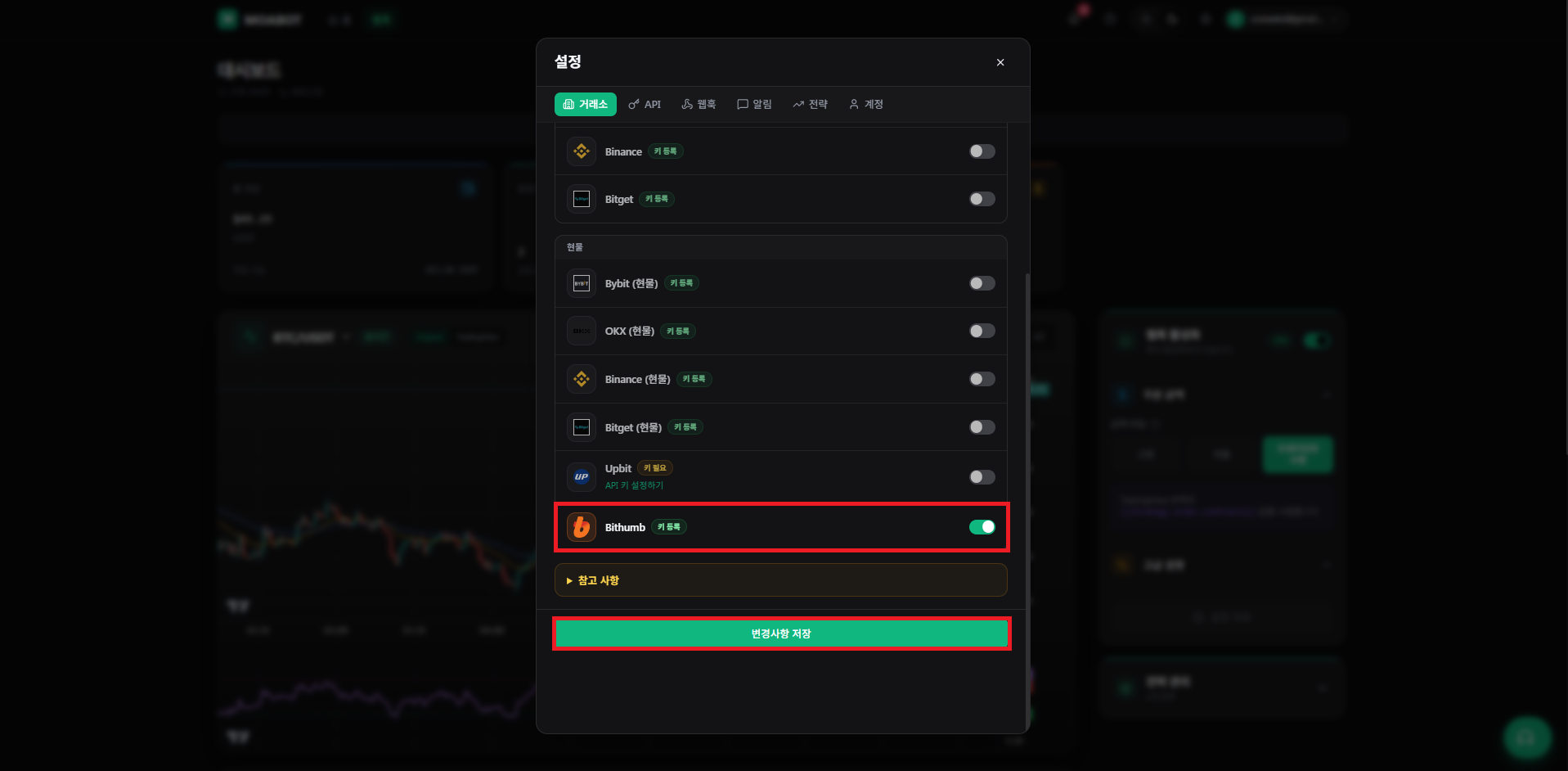
Enable Bithumb spot

What to do on this screen

Toggle Bithumb spot to ON, then press "Save changes".

Checkpoints

  • An API key with spot-trading permission must be registered in advance.
  • Spot has no leverage — if funds are insufficient, the order itself will not execute.
Spot sell (take-profit) is subject to each exchange's minimum-order policy. See the Funding Notice section.

Next: Webhook ON + TradingView quantity mode

Swipe horizontally to view the full capture.

Open
Bithumb Hyper RSI 03 Enable Bithumb spot
Find the menu matching the step title on the capture, then walk the checkpoints on the left in order.
04Bithumb · Hyper RSI

Webhook ON + TradingView quantity mode

What to do on this screen

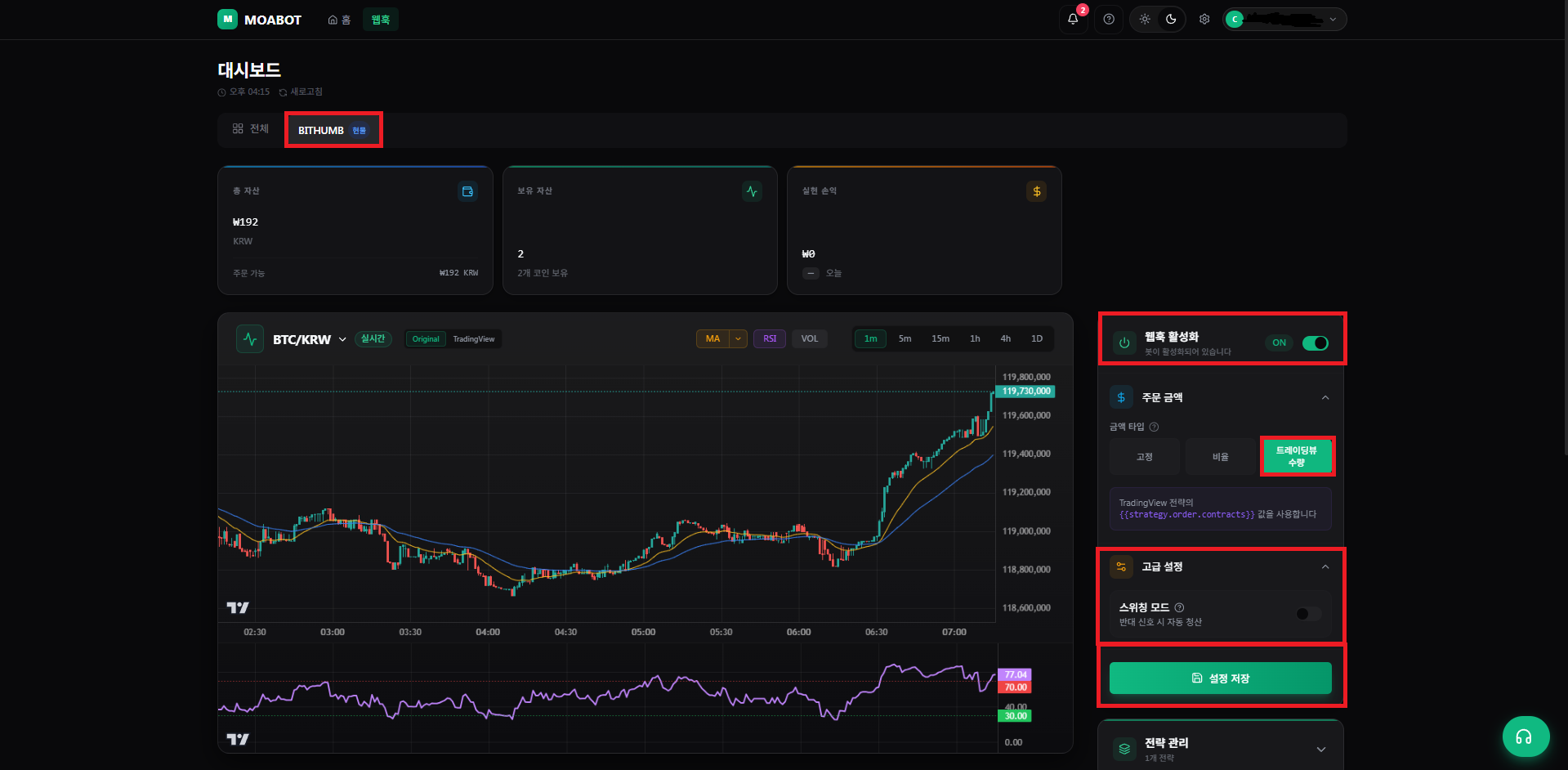
After confirming Bithumb spot is shown, turn webhook ON, set order entry mode to "TradingView quantity", and save.

Checkpoints

  • Keep risk management / advanced settings disabled.
  • TradingView quantity mode executes orders using the quantity carried in the chart alert message.
  • If you don't press "Save settings", the change won't apply when you move on.

Next: Open the TradingView chart

Swipe horizontally to view the full capture.

Open
Bithumb Hyper RSI 04 Webhook ON + TradingView quantity mode
Find the menu matching the step title on the capture, then walk the checkpoints on the left in order.
05Bithumb · Hyper RSI

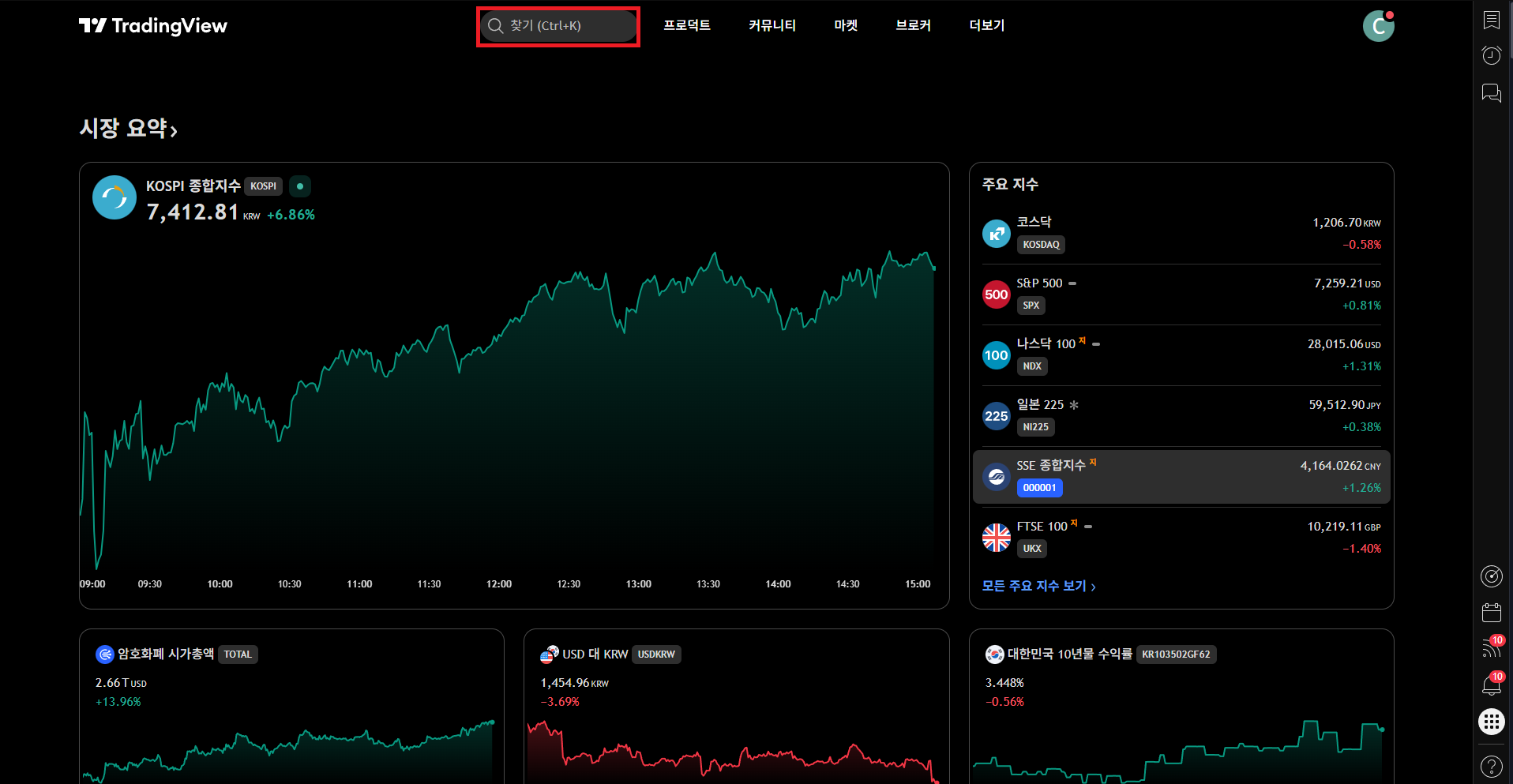
Open the TradingView chart

What to do on this screen

Go to TradingView Supercharts and click the symbol area at the top-left to open the search box.

Checkpoints

  • TradingView free tier supports webhook URLs.
  • Plan tier does not affect alert count — pick whichever plan fits you.

Next: Pick symbol + exchange

Swipe horizontally to view the full capture.

Open
Bithumb Hyper RSI 05 Open the TradingView chart
Find the menu matching the step title on the capture, then walk the checkpoints on the left in order.
06Bithumb · Hyper RSI

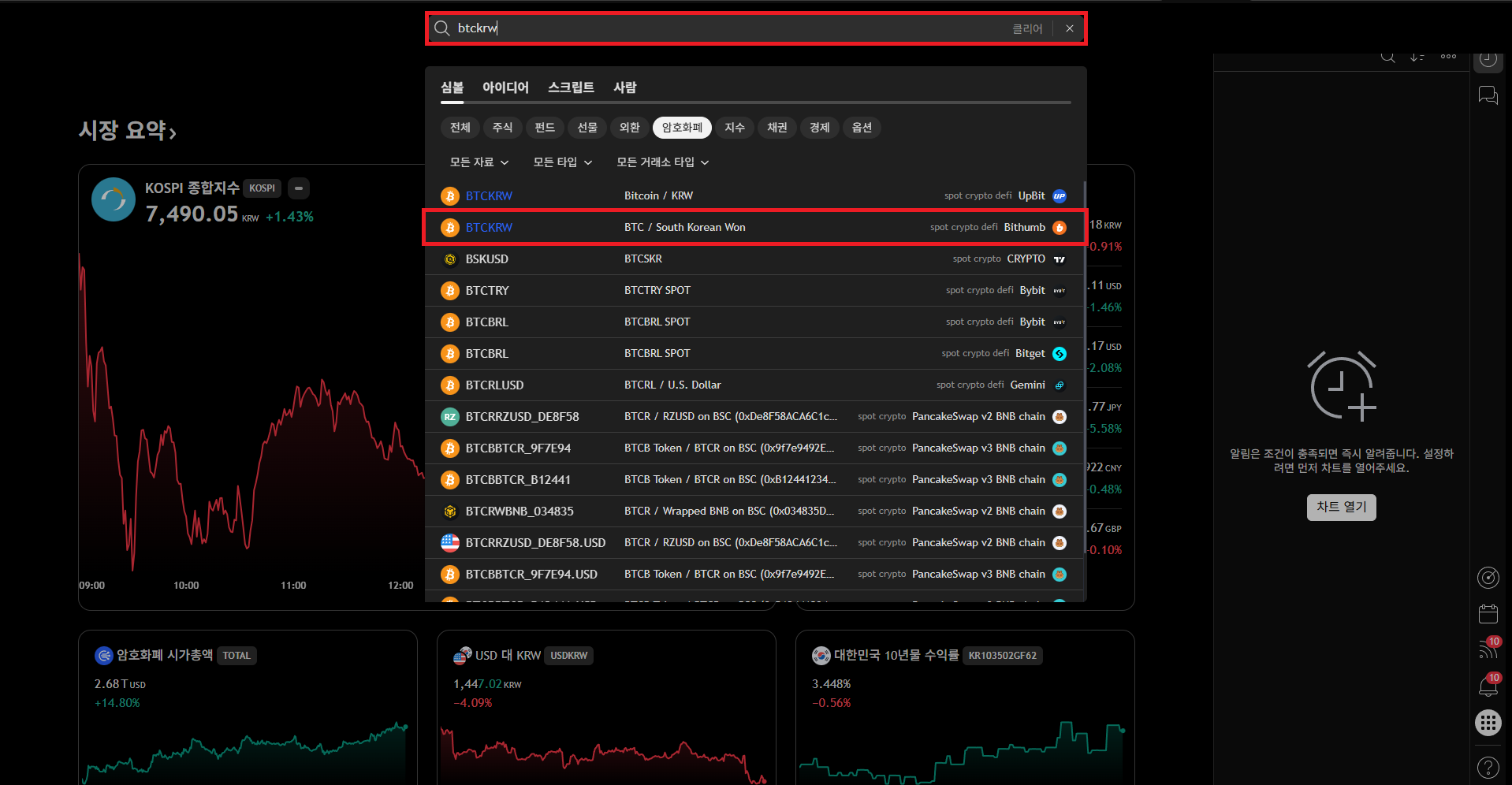
Pick symbol + exchange

What to do on this screen

Type BTC/KRW into the search box and select the chart shown for Bithumb on the right.

Checkpoints

  • Different exchanges have different prices — alerts will fire at different moments.
  • e.g. BTC/KRW — Bithumb (do not use charts from other exchanges).

Next: Add the invite-only indicator

Swipe horizontally to view the full capture.

Open
Bithumb Hyper RSI 06 Pick symbol + exchange
Find the menu matching the step title on the capture, then walk the checkpoints on the left in order.
07Bithumb · Hyper RSI

Add the invite-only indicator

What to do on this screen

Top menu → "Indicators" → "Invite-only" → click "[Tradingboost] HYPER RSI_DCAv3.1" to add it to the chart.

Checkpoints

  • If the invite-only section is empty, verify that your TradingView ID is correctly entered in MOABOT.
  • Indicator-access sync usually takes 5–10 minutes.

Next: Pick the timeframe

Swipe horizontally to view the full capture.

Open
Bithumb Hyper RSI 07 Add the invite-only indicator
Find the menu matching the step title on the capture, then walk the checkpoints on the left in order.
08Bithumb · Hyper RSI

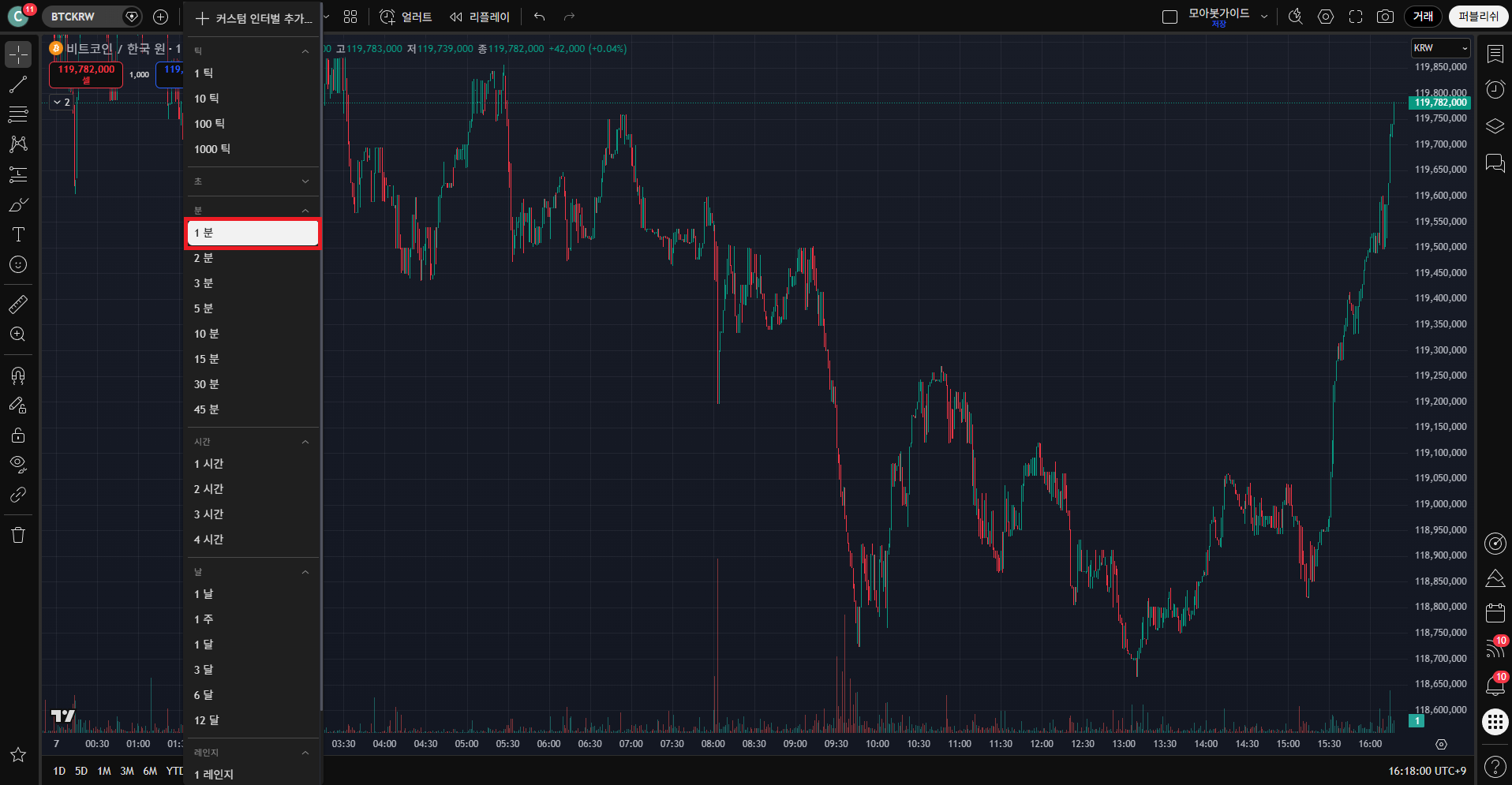
Pick the timeframe

What to do on this screen

Choose your trading timeframe in the top time selector (e.g. 5m / 15m / 1h).

Checkpoints

  • Shorter timeframes trigger alerts more often — more trades, more noise.
  • Decide based on your capital, order limits, and how much you can monitor.

Next: Open indicator settings (Inputs tab)

Swipe horizontally to view the full capture.

Open
Bithumb Hyper RSI 08 Pick the timeframe
Find the menu matching the step title on the capture, then walk the checkpoints on the left in order.
09Bithumb · Hyper RSI

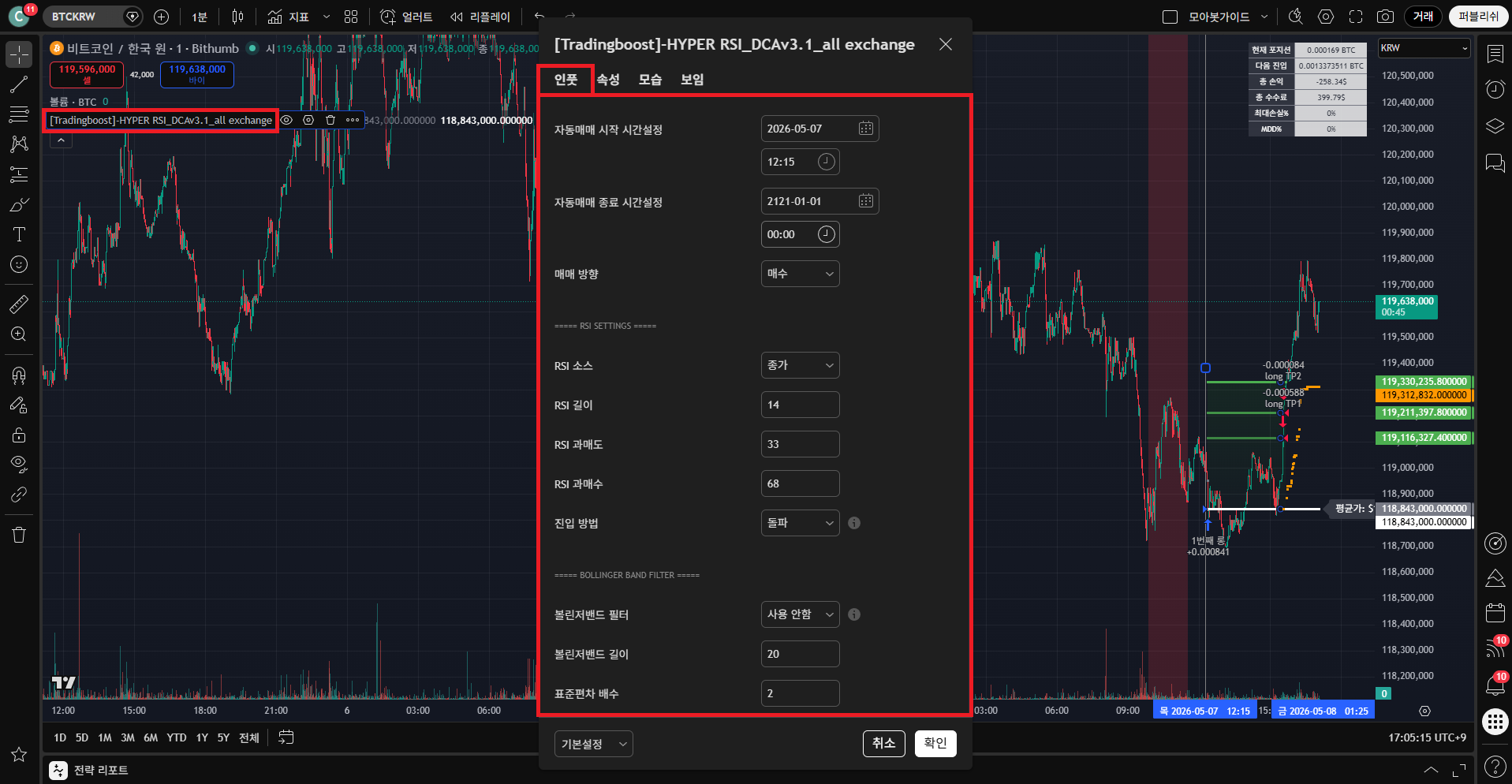
Open indicator settings (Inputs tab)

What to do on this screen

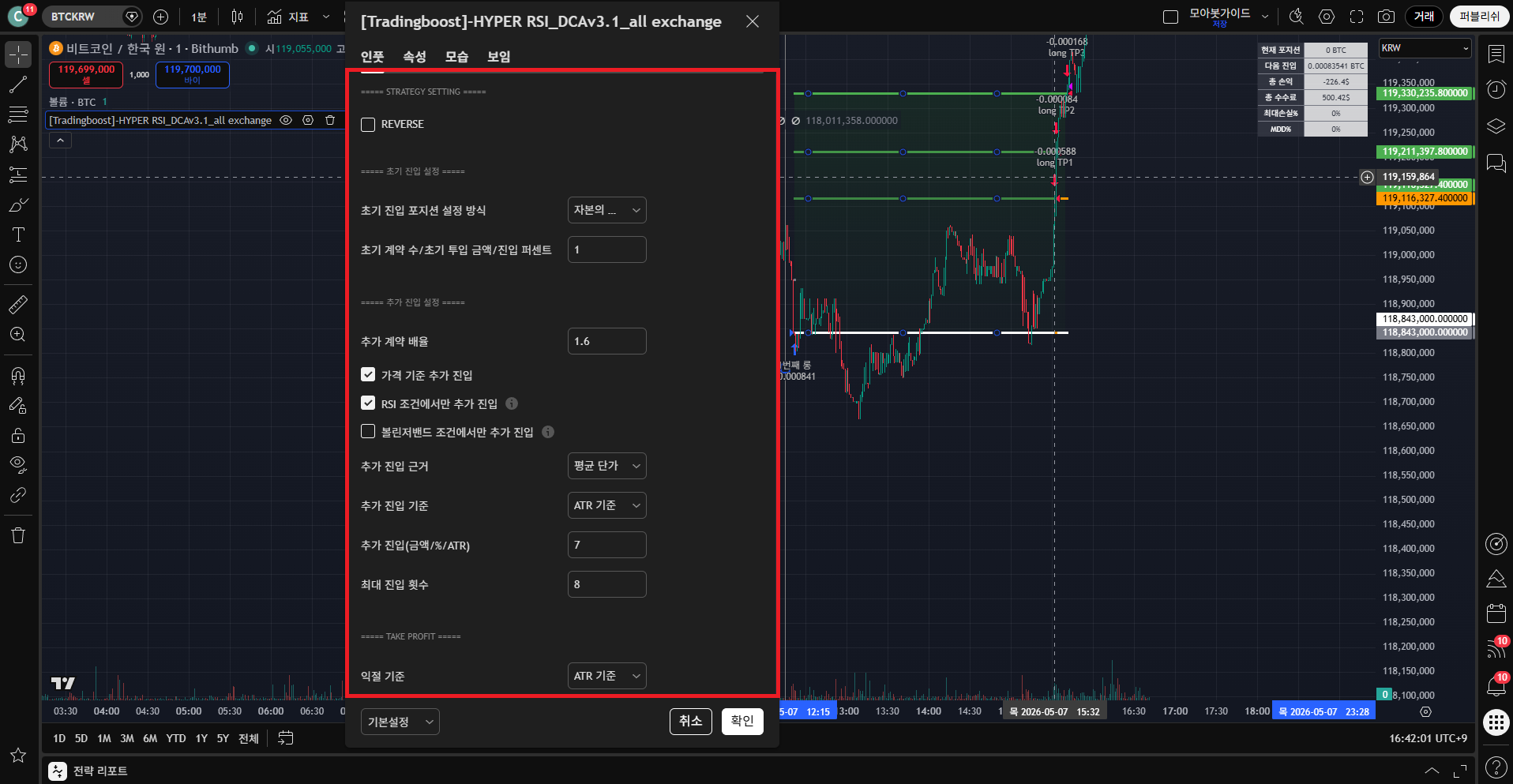
Double-click the "HYPER RSI_DCAv3.1" label at the top-left of the chart to open the settings dialog. In the "Inputs" tab, configure values that suit your trading style.

Checkpoints

  • See the "Input Reference" section below for the meaning of each field and recommended starting values.
  • These are only references. Adjust to match your own capital and risk.
Input values directly affect trading results. Start with the most conservative setup.

Next: Properties tab — fill in initial capital / commission only

Swipe horizontally to view the full capture.

Open
Bithumb Hyper RSI 09 Open indicator settings (Inputs tab)
Find the menu matching the step title on the capture, then walk the checkpoints on the left in order.
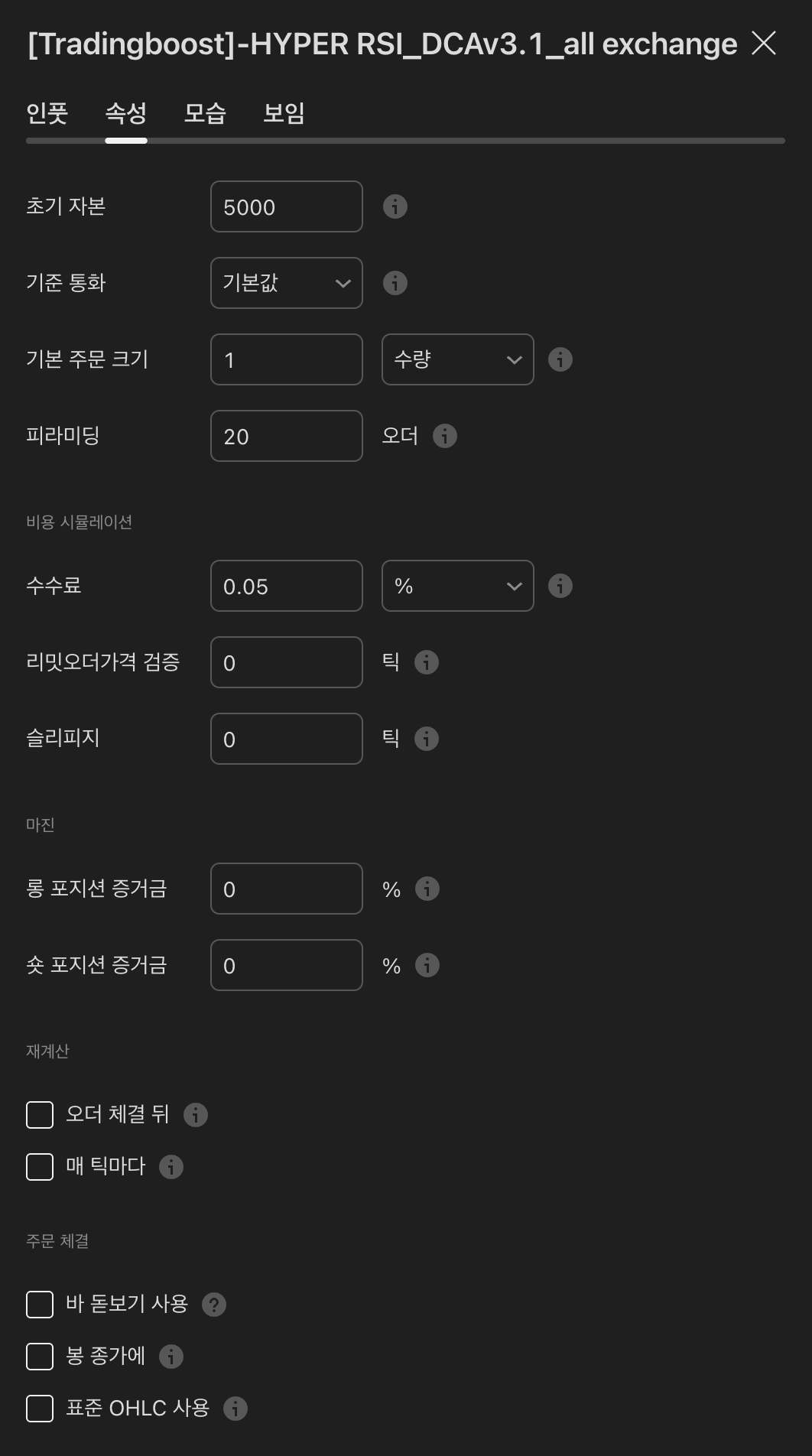
10Bithumb · Hyper RSI

Properties tab — fill in initial capital / commission only

What to do on this screen

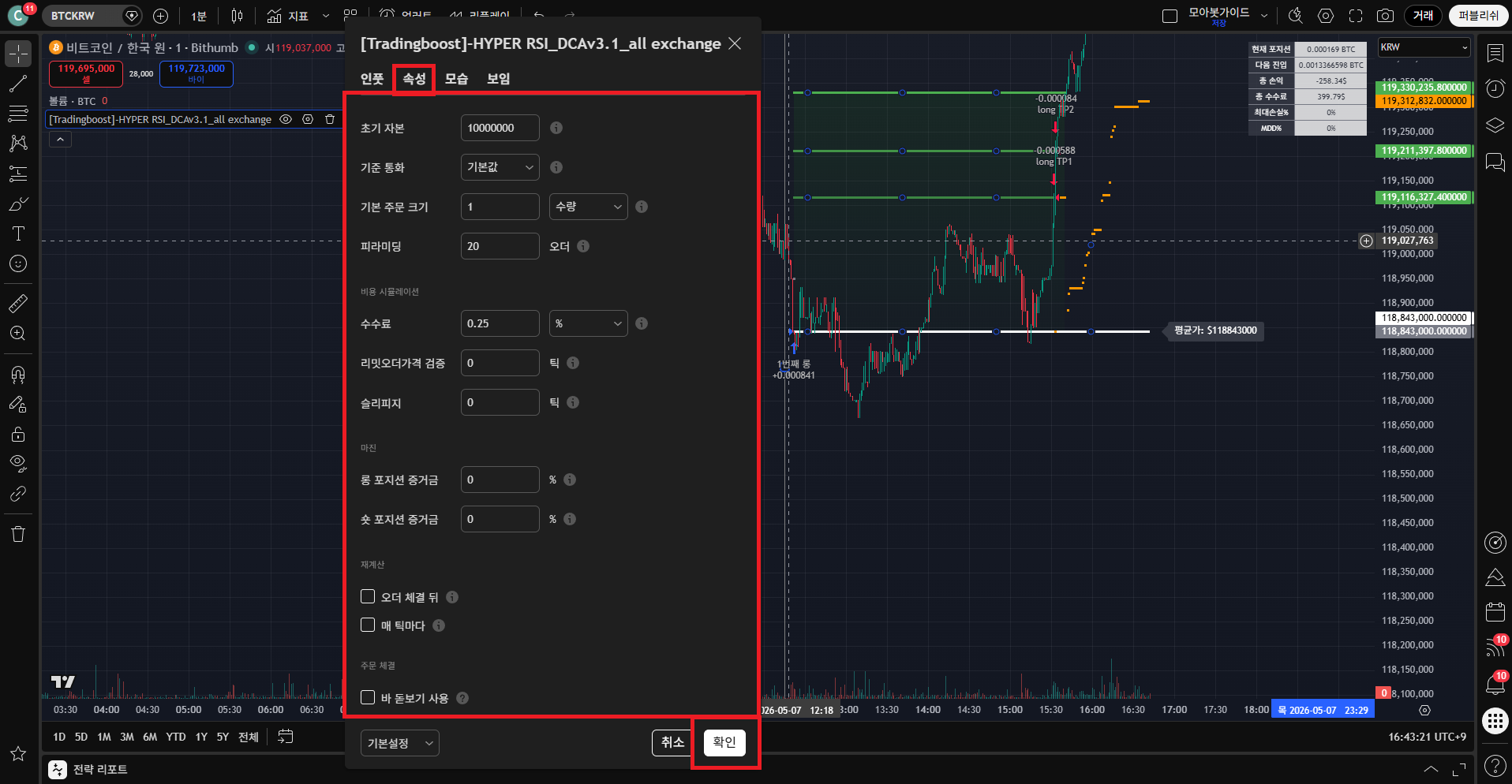
In the "Properties" tab, fill in only the initial capital and commission (fee) values matching your environment, then press "OK".

Checkpoints

  • Initial capital = the actual amount you will trade (in KRW).
  • Commission = Bithumb spot fee rate (%) — typically 0.05–0.25% depending on your tier.
  • Do not change other fields (pyramiding, slippage, margin, etc.).
※ Editing fields other than initial capital and commission can cause the indicator to misbehave.

Next: Create an alert + message setup

Swipe horizontally to view the full capture.

Open
Bithumb Hyper RSI 10 Properties tab — fill in initial capital / commission only
Find the menu matching the step title on the capture, then walk the checkpoints on the left in order.
11Bithumb · Hyper RSI

Create an alert + message setup

What to do on this screen

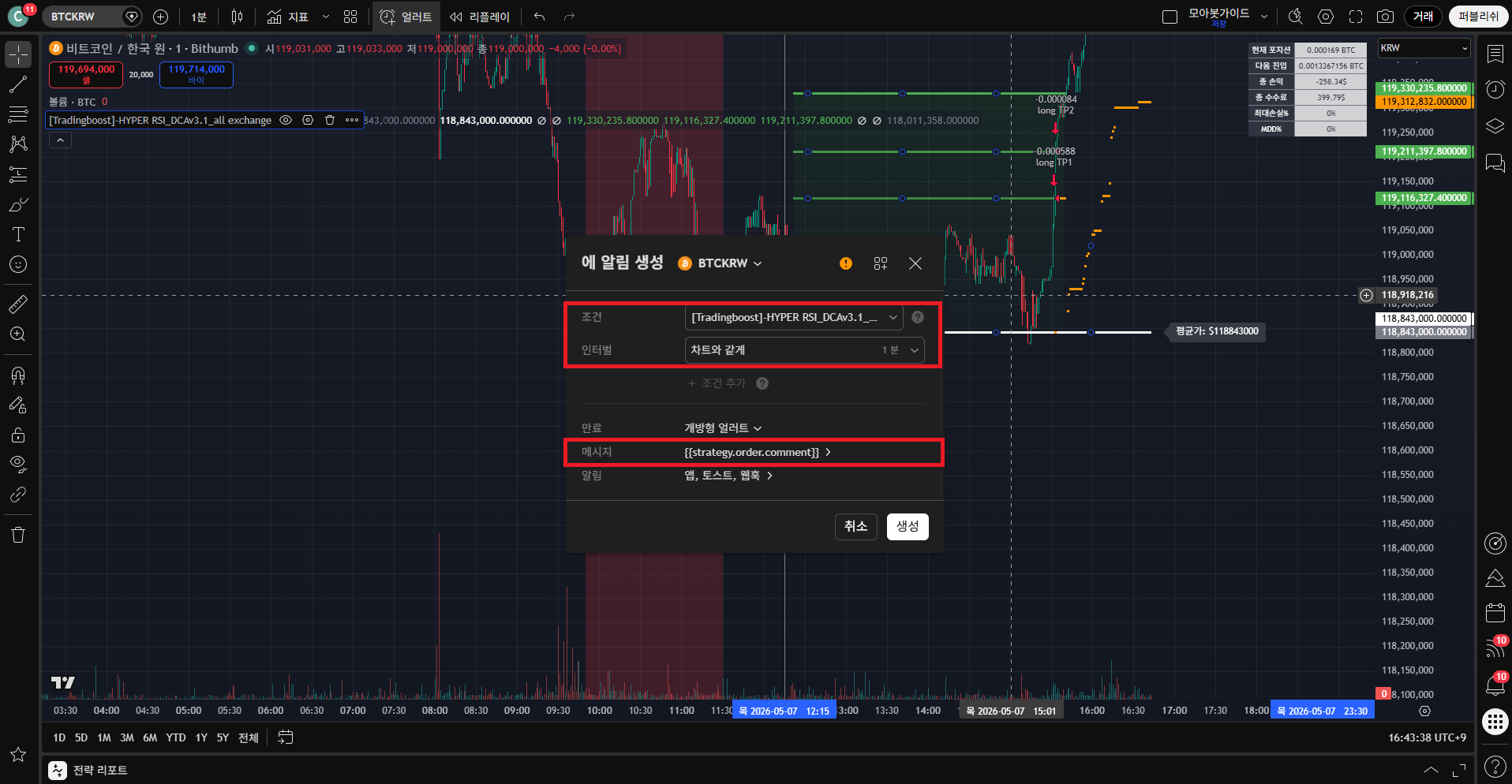
On the right side of the chart, click Alerts (clock icon) → create a new alert. Verify that "Condition" is set to [Tradingboost] HYPER RSI_DCAv3.1 and that "Interval" matches the chart, then leave the message box empty.

Checkpoints

  • Enable the "Any alert() function call" option so that every alert fires its message.
  • Name the alert something recognizable (e.g. HRSI-OKX-15m).

Next: Copy the strategy code from MOABOT

Swipe horizontally to view the full capture.

Open
Bithumb Hyper RSI 11 Create an alert + message setup
Find the menu matching the step title on the capture, then walk the checkpoints on the left in order.
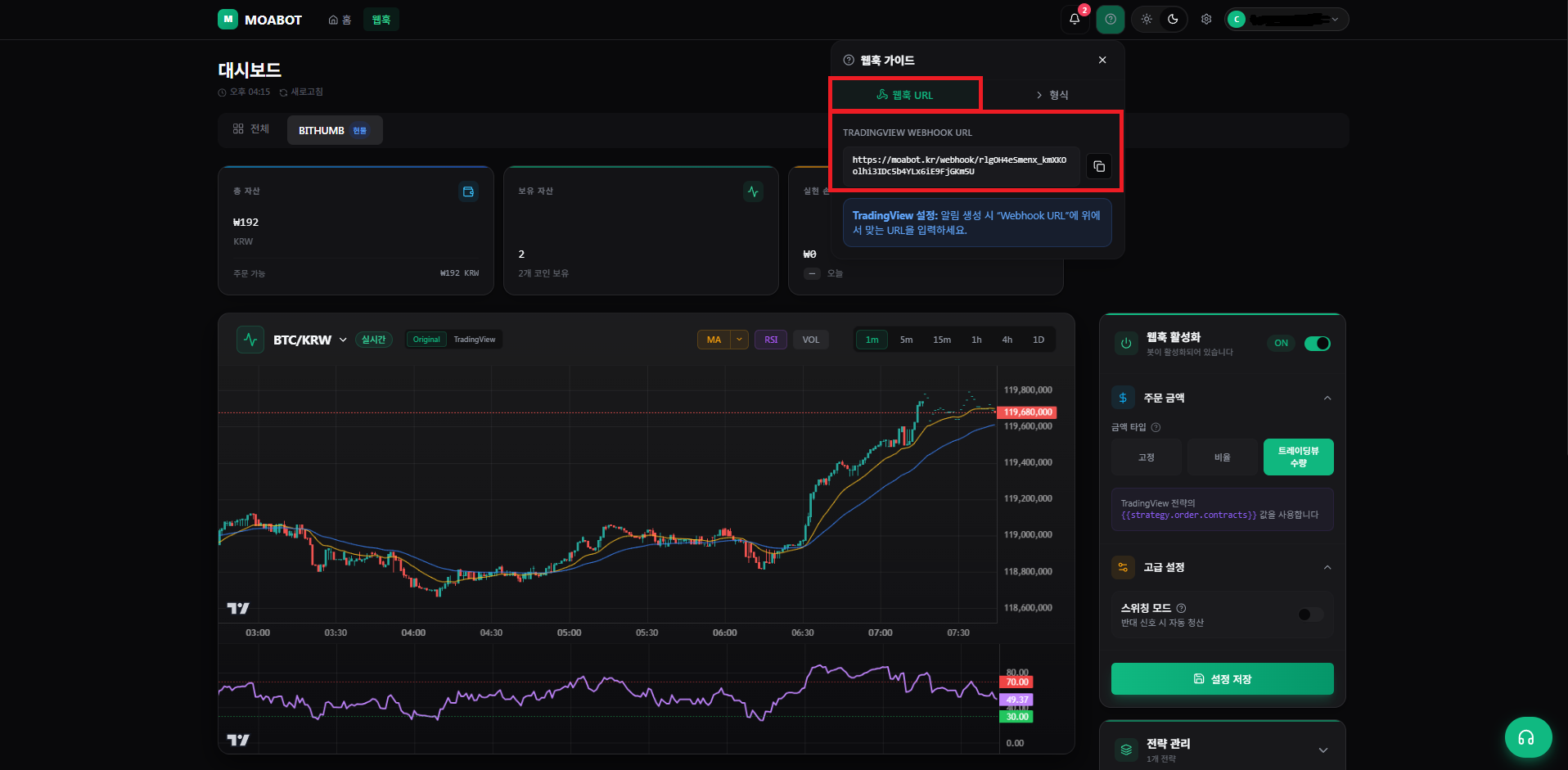
12Bithumb · Hyper RSI

Copy the strategy code from MOABOT

What to do on this screen

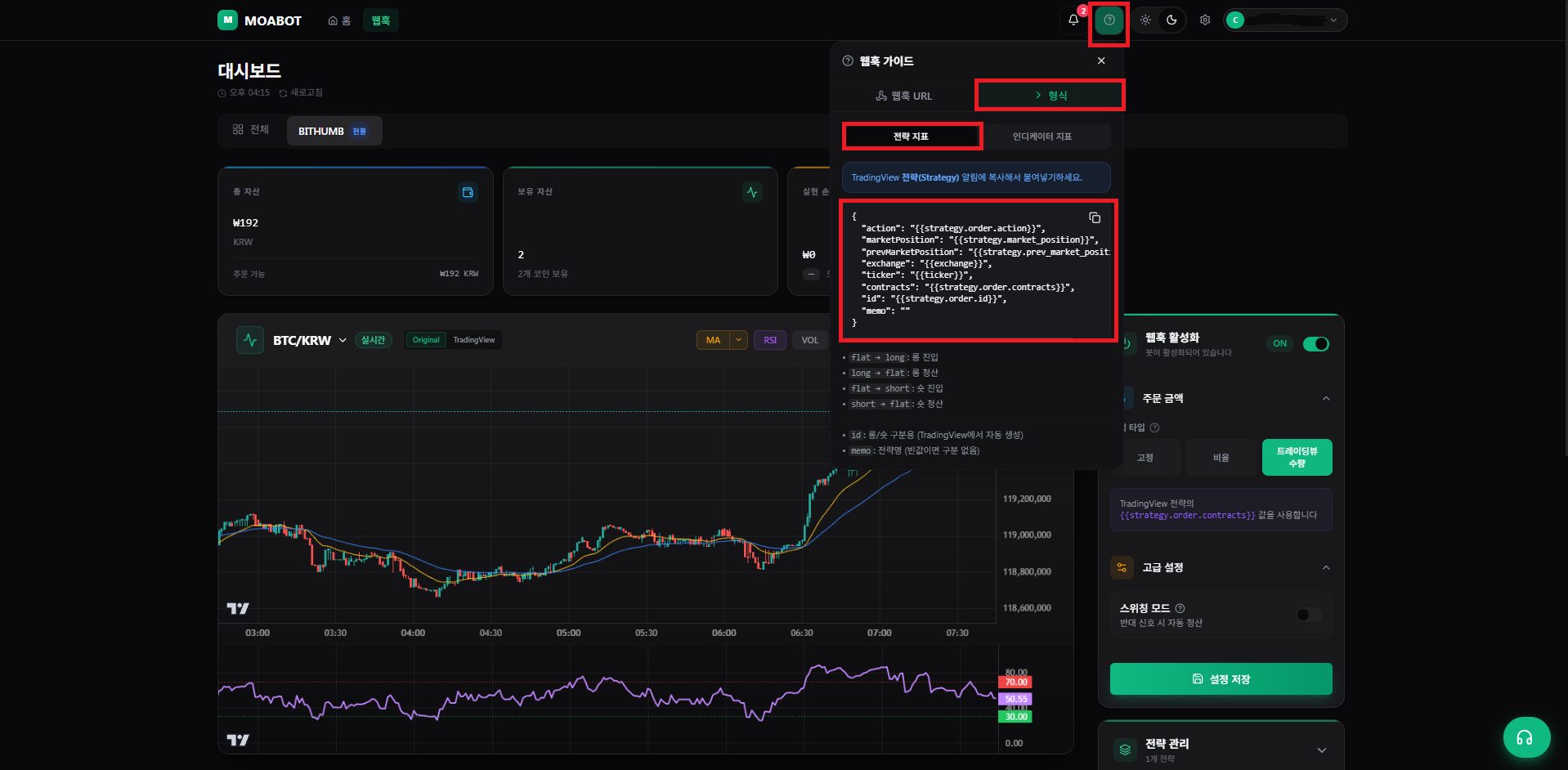
In MOABOT, click "?(Help)" at the top-right → "Format" → "Strategy indicator" to see the alert-message template. Copy the entire code.

Checkpoints

  • The copied code includes your personal identifier — do not share it.
  • The code works regardless of exchange / symbol / timeframe changes.

Next: Paste the code into the message box

Swipe horizontally to view the full capture.

Open
Bithumb Hyper RSI 12 Copy the strategy code from MOABOT
Find the menu matching the step title on the capture, then walk the checkpoints on the left in order.
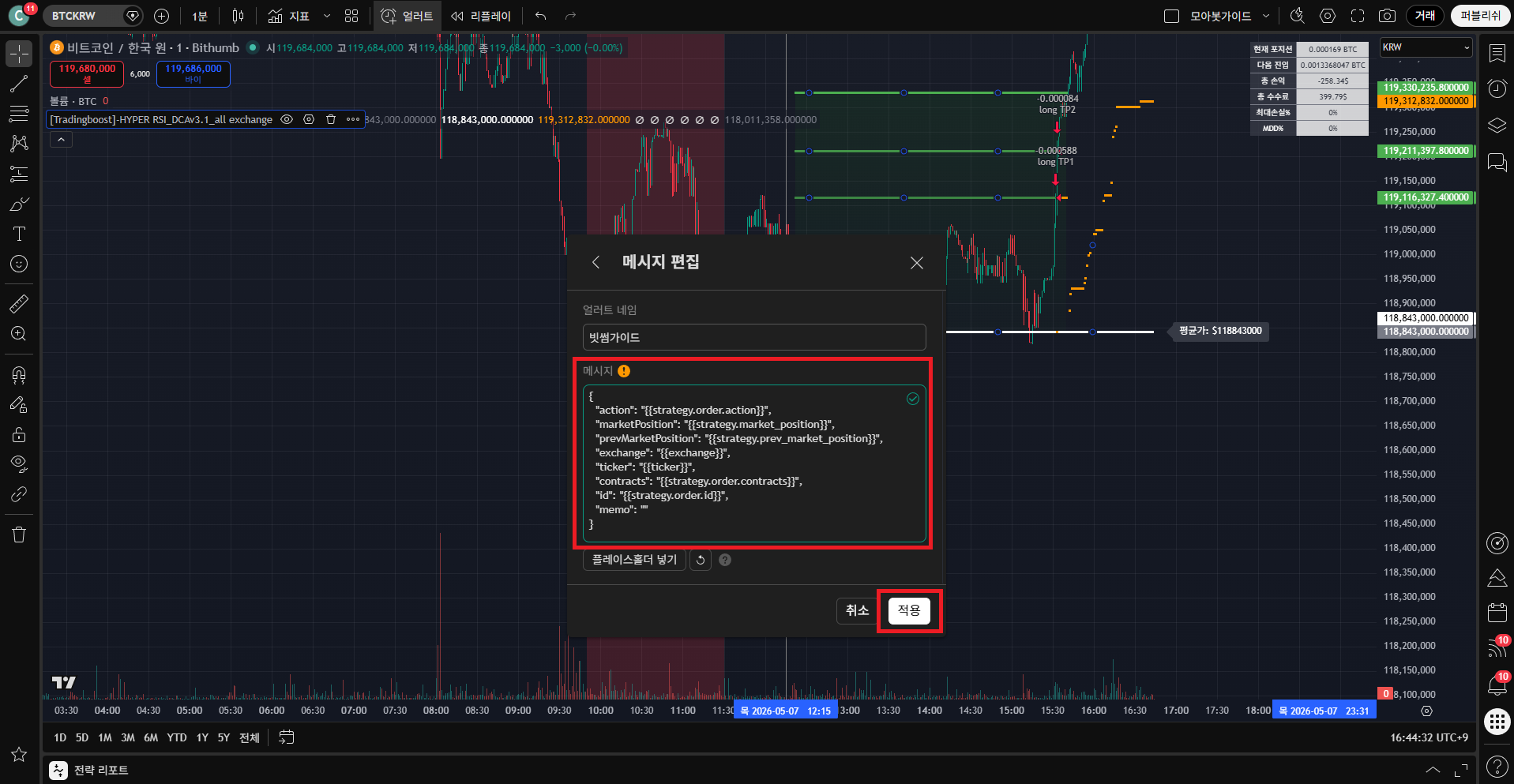
13Bithumb · Hyper RSI

Paste the code into the message box

What to do on this screen

Paste the copied code into the message box of the TradingView alert dialog. Do not add any extra text.

Checkpoints

  • If the message format is broken, MOABOT cannot parse the signal.
  • Leading/trailing whitespace is fine, but do not add other words.

Next: Notification channels — App / Toast / Webhook

Swipe horizontally to view the full capture.

Open
Bithumb Hyper RSI 13 Paste the code into the message box
Find the menu matching the step title on the capture, then walk the checkpoints on the left in order.
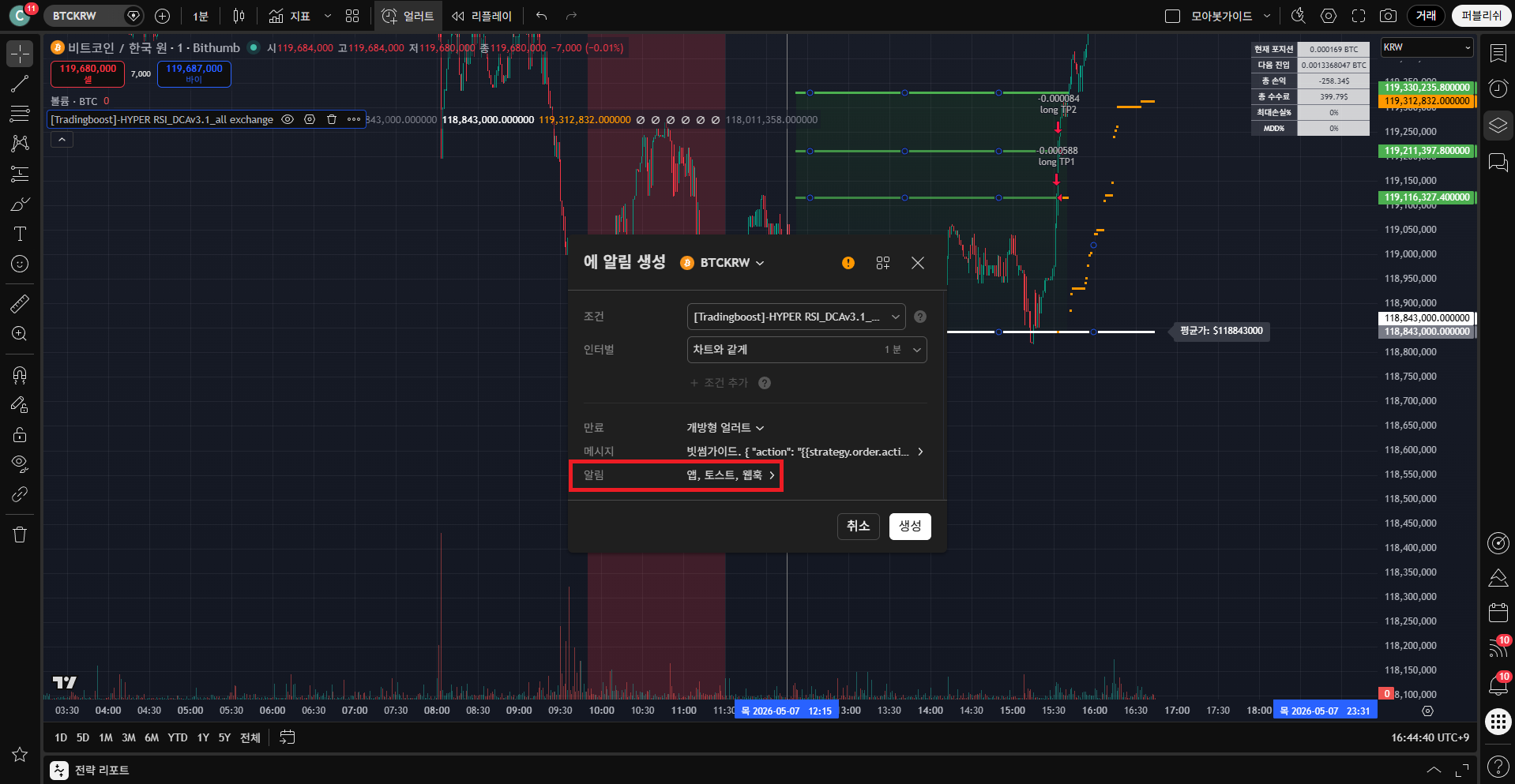
14Bithumb · Hyper RSI

Notification channels — App / Toast / Webhook

What to do on this screen

In the alert's "Notifications" tab, check "Show in app / Pop-up (toast) / Webhook URL".

Checkpoints

  • Webhook URL must be enabled for MOABOT to receive the signal.
  • App / toast are for your own monitoring — turning them off does not affect trading.

Next: Copy + paste the webhook URL

Swipe horizontally to view the full capture.

Open
Bithumb Hyper RSI 14 Notification channels — App / Toast / Webhook
Find the menu matching the step title on the capture, then walk the checkpoints on the left in order.
15Bithumb · Hyper RSI

Copy + paste the webhook URL

What to do on this screen

Copy your URL from the "Webhook URL" area of the MOABOT webhook dashboard, paste it into the Webhook URL field of the TradingView alert, then click "Apply".

Checkpoints

  • The webhook URL is unique per user — if shared externally, regenerate it immediately.
  • One URL can be used for many alerts.

Next: Create the alert → verify it's active via the clock icon

Swipe horizontally to view the full capture.

Open
Bithumb Hyper RSI 15 Copy + paste the webhook URL
Find the menu matching the step title on the capture, then walk the checkpoints on the left in order.
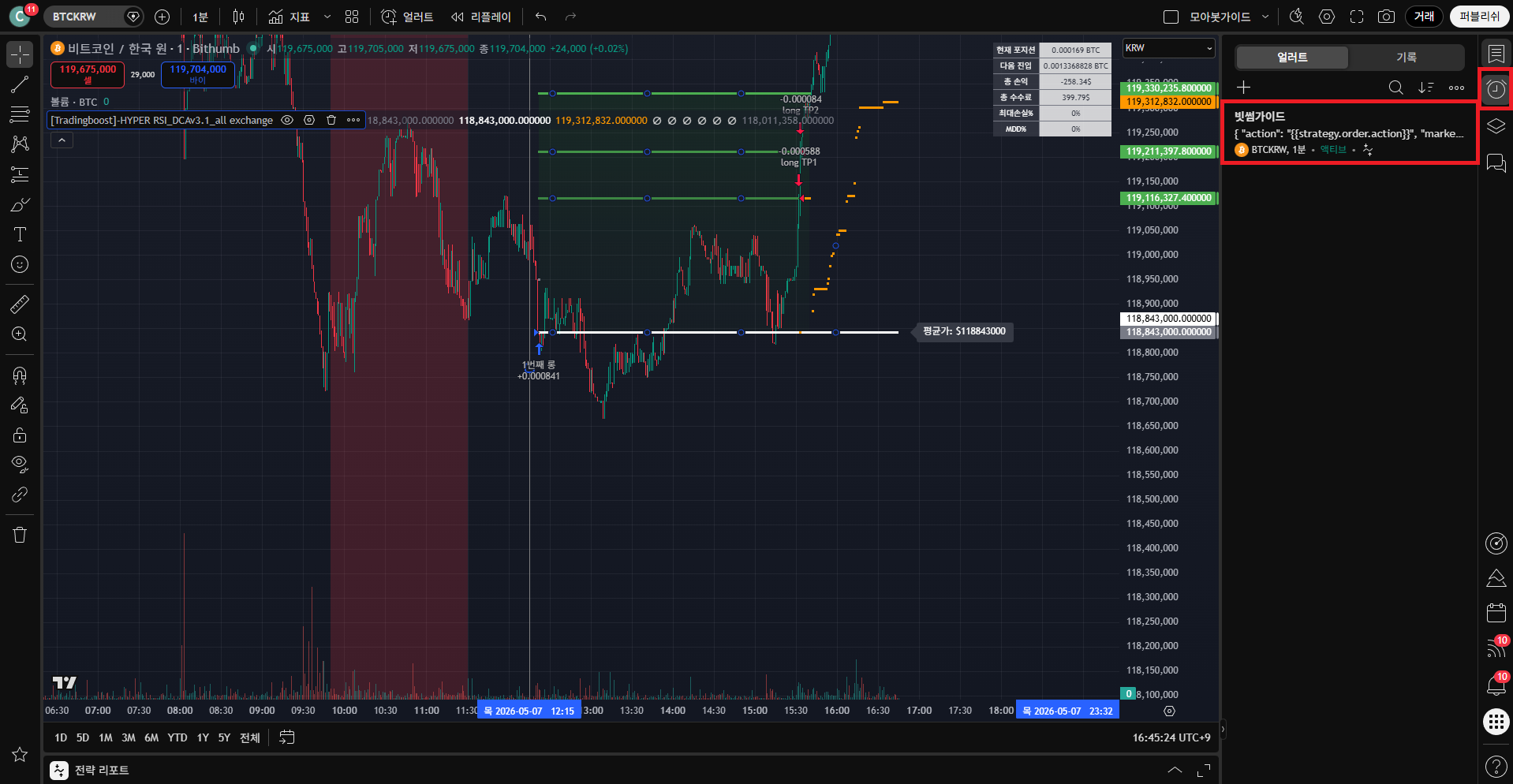
16Bithumb · Hyper RSI

Create the alert → verify it's active via the clock icon

What to do on this screen

Click "Create" to make the alert, then click the clock icon on the right of the chart to confirm the new alert is active.

Checkpoints

  • Active alerts are marked with a green dot next to the clock icon.
  • Repeat for other exchanges / symbols / timeframes.
From here on, MOABOT executes orders automatically every time the chart signal fires.

Swipe horizontally to view the full capture.

Open
Bithumb Hyper RSI 16 Create the alert → verify it's active via the clock icon
Find the menu matching the step title on the capture, then walk the checkpoints on the left in order.
Input Reference

Indicator inputs — meaning and recommended starting values

Definitions and example starting values for every field. All values are starting points — adjust based on your own capital and trading style.

A

Auto-trade window / Direction

Defines when the indicator becomes active and the trading direction. Start time must be after the current moment, or back-fired fake signals can fire.

Auto-trade start time

e.g. 2025-11-01 00:00 (after now)

Auto-trade end time

Set far in the future (e.g. 2121-01-01)

Direction

  • Long (buy)
  • Short (sell)
  • Both (long + short)

Spot supports long-only. Both / short are for futures accounts.

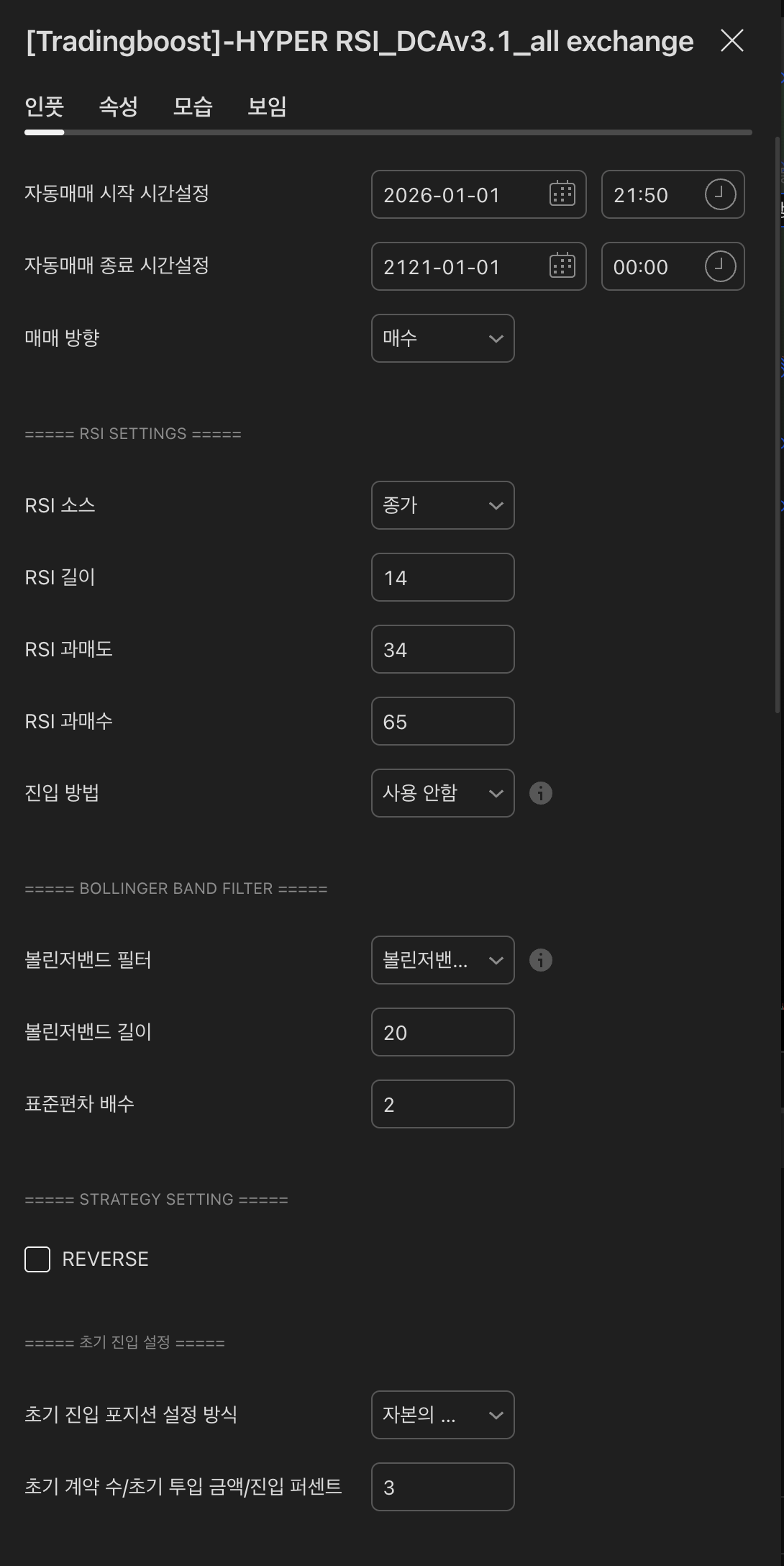
HYPER RSI 인풋 — Auto-trade window / Direction
Actual indicator settings screen
B

RSI source / Length / Oversold·Overbought

The RSI calculation base used as the entry trigger. "Source" chooses which candle price feeds the RSI.

RSI source

  • Close (recommended)
  • Open / High / Low
  • (H+L)/2, (H+L+C)/3, etc.

RSI length

Default 14. Shorter = more signals + more noise.

RSI oversold

e.g. 33. Lower = more conservative entries.

RSI overbought

e.g. 68. Used as a take-profit reference.

HYPER RSI 인풋 — RSI source / Length / Oversold·Overbought
Actual indicator settings screen
C

Entry method + Bollinger Band filter

Decides when to actually enter after RSI conditions are met, and whether Bollinger Bands work as an extra filter.

When both RSI and Bollinger filters are ON, entry requires both conditions at once.

Entry method

  • Breakout (first cross of the RSI line)
  • Inflection (direction flip)
  • Inflection breakout (flip then opposite cross)

Bollinger Band filter

  • Disabled
  • Upper/Lower (inside/outside band)
  • Upper/Lower touch
  • Breakout / Inflection / Inflection breakout

Bollinger length

Default 20

Standard deviation multiplier

Default 2 (band width)

HYPER RSI 인풋 — Entry method + Bollinger Band filter
Actual indicator settings screen
D

Initial entry (1st entry)

How much you enter on the first signal. Always check each exchange's minimum lot size and minimum order amount first.

※ Minimum contract size differs per coin. Check your exchange's market info for the minimum lot size (BTC: 0.0001, etc.) and minimum order amount.

Initial entry sizing method

  • % of capital
  • Contracts / Quantity
  • Amount (USDT)

Initial contracts / amount / percent

e.g. 0.75% of capital — conservative starting point

HYPER RSI 인풋 — Initial entry (1st entry)
Actual indicator settings screen
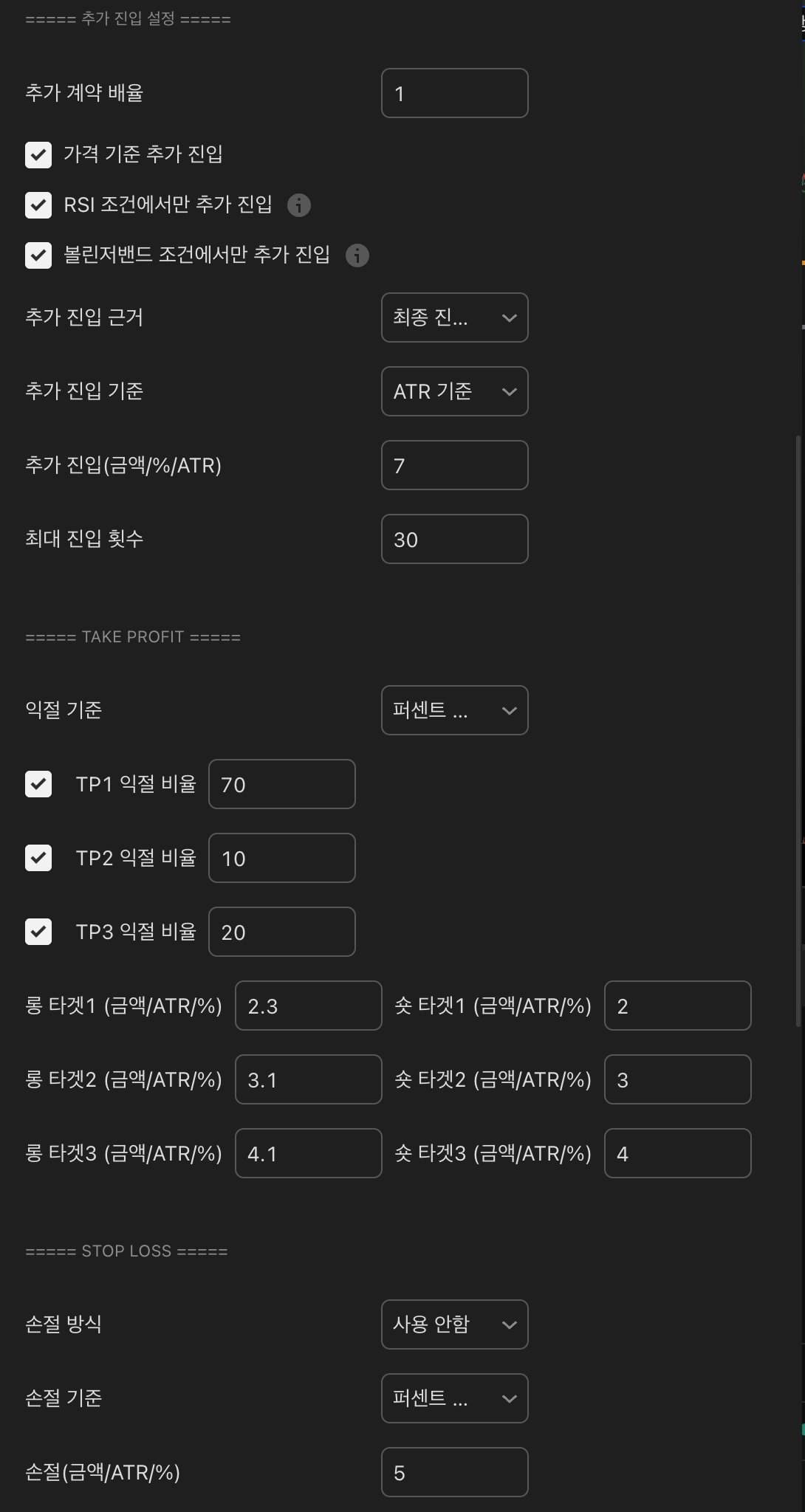
E

Additional entries (DCA) — split buying

After the first entry, if the market moves against you, this configures how to lower the average price with split buys.

DCA contract multiplier

e.g. 1.6 — each step buys 1.6x the previous step

DCA trigger basis

  • Price
  • RSI oversold/overbought only
  • Bollinger condition only

DCA reference price

  • Average price
  • Last entry price

DCA gap

  • Amount-based
  • Percent-based
  • ATR-based

Maximum entries

e.g. 7 (including 1st — so DCA count is 6)

HYPER RSI 인풋 — Additional entries (DCA) — split buying
Actual indicator settings screen
F

Take profit (TP1 / TP2 / TP3)

The basis for splitting position exit. The 3-stage take-profit percentages must sum to 100.

※ Each TP slice must clear the exchange's minimum lot size (e.g. BTC 0.0001). Insufficient funds cause TP to be rejected.

TP basis

  • Amount (USDT)
  • Percent (%)
  • ATR

TP1 / TP2 / TP3 ratio

e.g. 70 / 10 / 20 — sum = 100

Long / Short targets 1·2·3

Price distance for each target (e.g. ATR 2.3 / 3.1 / 4.1)

HYPER RSI 인풋 — Take profit (TP1 / TP2 / TP3)
Actual indicator settings screen
G

Stop loss / Break-even / Trailing stop

Risk management options. Start conservatively and adjust once you understand the behavior.

Stop loss mode

  • Disabled (default)
  • Stop on average price
  • Stop on last entry price

Stop loss basis

  • Amount
  • Percent
  • ATR

Break-even

  • Move stop to break-even after TP1
  • Move stop to TP1 after TP2
  • Move stop to TP2 after TP3

Trailing stop

After TP3, trail-stop remaining size (e.g. 0.4%)

HYPER RSI 인풋 — Stop loss / Break-even / Trailing stop
Actual indicator settings screen
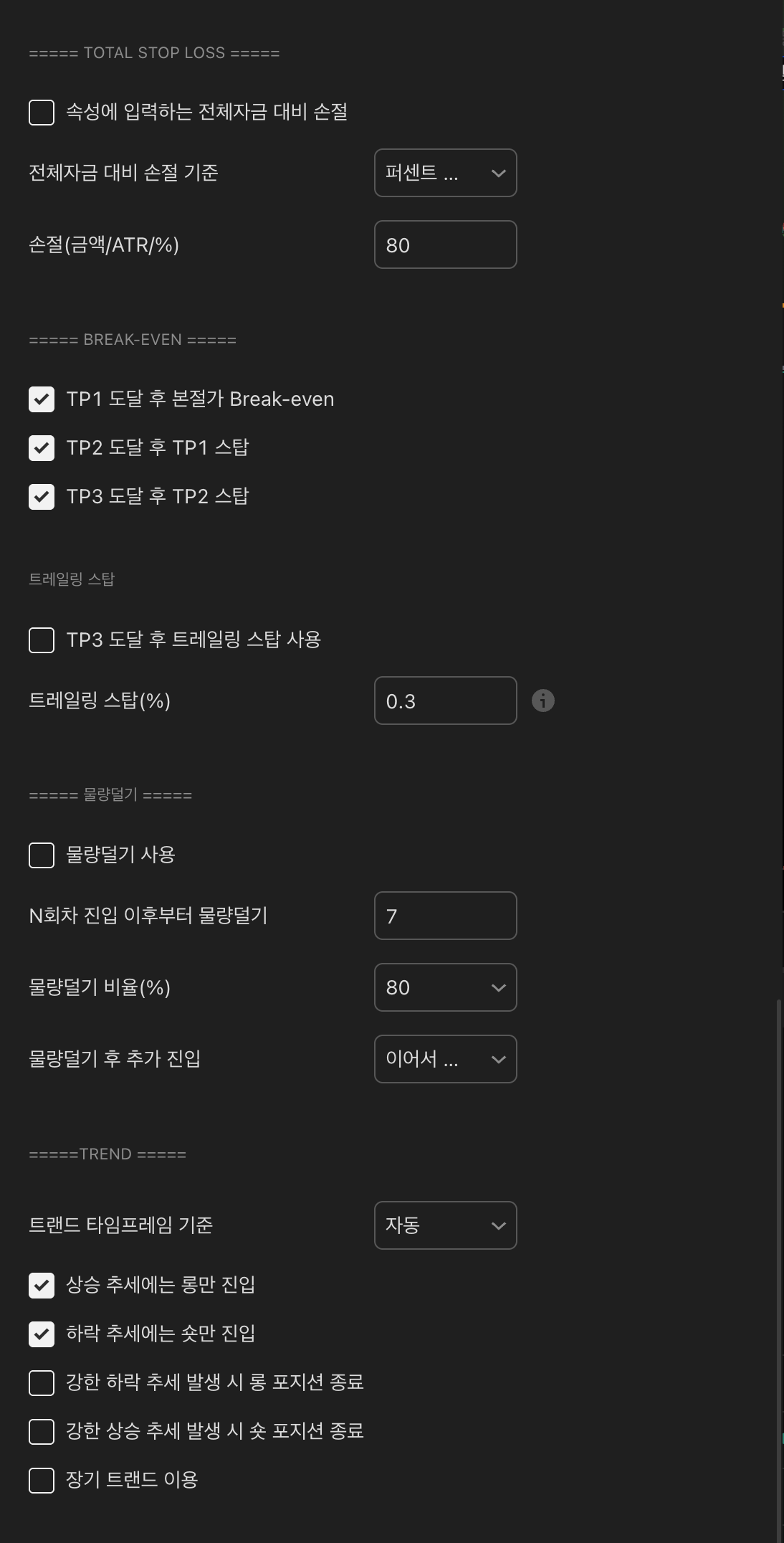
H

Position lightening + Trend filter

How to handle leftover size when entries reach high steps, and trend-based filter options.

Position lightening

At a target step, clear a portion (e.g. clear 80% at step 7)

After lightening

  • Continue DCA from where it was
  • Restart from step 1

Trend options

  • Uptrend — long only
  • Downtrend — short only
  • Exit on strong counter-trend
  • Long-term trend (4H reference)
HYPER RSI 인풋 — Position lightening + Trend filter
Actual indicator settings screen
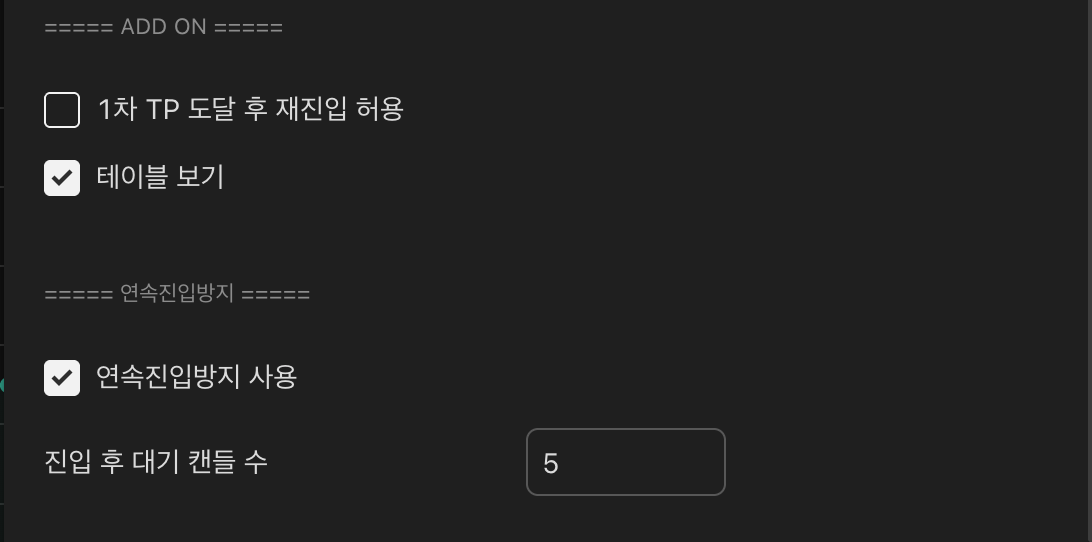
I

Add-on options + Consecutive-entry filter

Re-entry policy, on-chart status table, and consecutive-signal filtering.

ADD ON

  • Allow re-entry after TP1
  • Show table (chart top-right status panel)

Consecutive-entry block

Ignore signals for N candles after entry.

Cool-down candle count

e.g. 5 — wait 5 candles for the next signal.

HYPER RSI 인풋 — Add-on options + Consecutive-entry filter
Actual indicator settings screen
J

Properties tab — Initial capital / Commission

Separately from the Inputs tab, the "Properties" tab is where the backtest / simulation capital and trade fee live. Do not touch other fields here — the indicator can misbehave.

※ Do not modify Base currency / Order size / Pyramiding / Slippage / Margin / Recalculation / Fill assumption.

Initial capital

Actual amount you will trade (USDT or KRW equivalent)

Commission

Exchange spot fee rate — typically 0.05–0.1%

HYPER RSI 인풋 — Properties tab — Initial capital / Commission
Actual indicator settings screen

Next

Check active alerts in the webhook dashboard

Once setup is complete, the MOABOT webhook dashboard shows incoming signals and order results in real time.

Go to Webhook Dashboard
Support