Exchange API Setup

Exchange API Key Setup Guide

MOAHook relays your TradingView alerts to exchange APIs, so each user must create API keys directly inside the exchange account.

This guide follows the same order as the screenshots and explains why each permission, IP restriction, and key value matters.

Viewing on mobile

On each exchange detail page, you can switch between PC and mobile screenshots. Exchanges with mobile screenshots open the mobile flow first on small screens; exchanges without them use the PC flow.

API security settings

64.176.225.121

For exchanges that support IP restrictions, allow only this IP and never enable withdrawal permissions. For Korea Investment, match the key environment and HTS ID.

IP restriction or environment validation

Restrict supported exchanges to 64.176.225.121. For Korea Investment, validate paper/real environment and HTS ID.

Never enable withdrawals

Keep asset-transfer permissions such as Withdraw, Transfer, and Sub-account Manage disabled.

Register keys immediately

Secret Keys are often shown only once, so register them in MOABOT right after issuance.

한국투자증권

Korea Investment & Securities API key setup

Create the key in the order shown below, then enter the values in MOABOT Dashboard > Settings > API. Even if the exchange screen changes slightly, look for API Management, API keys, or API and connections.

Values to enter in MOABOT

App KeyApp SecretAccount NumberAccount Product CodeHTS IDPaper/Real
Minimum orderKorea Investment domestic stock cash orders do not expose an exchange-wide fixed minimum notional like KRW 5,000. The practical minimum is one whole share at the current stock price.

Recommended settings

  • Issued Korea Investment Open API app
  • Domestic stock cash-order account
  • Account product code: MOABOT uses 01 when left blank
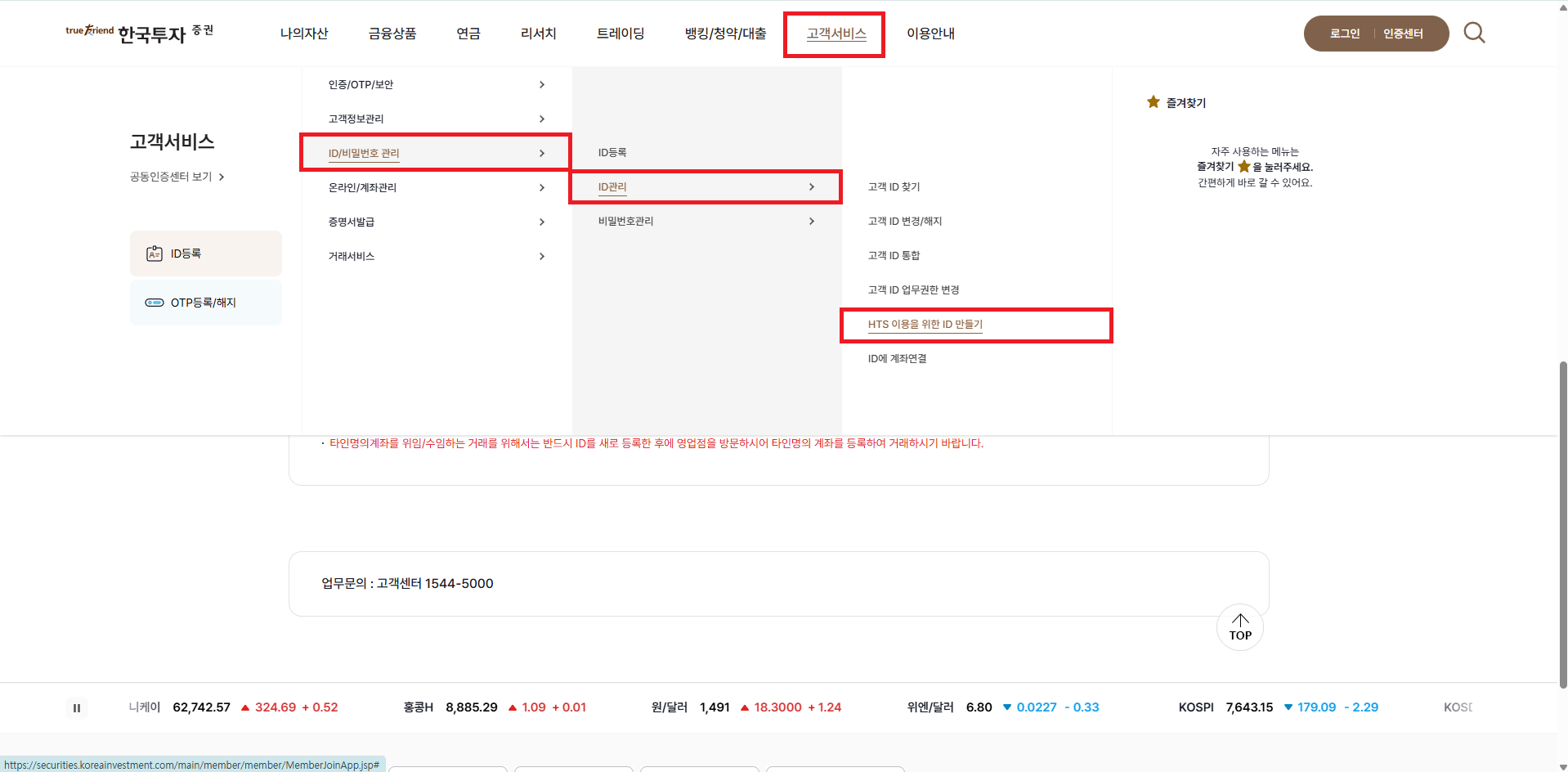
  • HTS ID for fill-notice websocket subscription
  • Paper/real environment must match the issued key

Cautions

  • Korea Investment separates paper-trading and real-trading App Key/App Secret values. Validation or orders fail if the MOABOT environment toggle does not match the key environment.
  • If the HTS ID is wrong, Korea Investment rejects the fill-notice websocket subscription. MOABOT blocks Korea Investment orders before execution and records the reason in logs.
  • v1 is based on domestic cash stock orders.
  • Domestic stock orders use a 1-share minimum unit, not a fixed minimum notional. In amount mode, orders fail when the amount buys less than one share at the current price.
  • Korea Investment access tokens and websocket approval keys are issued and refreshed automatically by the MOABOT server. Users do not enter tokens manually.

Capture View

Follow the PC web screenshots

This is the standard desktop-browser flow for opening the exchange API management screen and creating a key. The wider screen makes permissions and IP restrictions easier to verify.

Desktop opens the PC flow first. On small screens, mobile screenshots open first when available. This exchange currently has no mobile screenshots, so the PC flow is shown.

01한국투자증권 · PC web

Sign in to Korea Investment Open API portal

What to do on this screen

Sign in to the Korea Investment & Securities Open API portal with your KIS credentials. If you do not yet have an Open API ID, enter the desired ID and password to request a new account.

Checkpoints

  • Use a real-trading app for real orders and a paper-trading app for tests.
  • If you reuse an existing app, confirm that App Key and App Secret match the intended environment.
  • Your KIS trading account ID and your Open API portal ID may be different.

Next step: Open API request → mobile verification

Swipe horizontally to inspect the desktop screenshot.

Open
Korea Investment & Securities PC web API setup step 1: Sign in to Korea Investment Open API portal
Find the menu or field that matches the step title in the screenshot, then follow the checkpoints on the left.
02한국투자증권 · PC web

Open API request → mobile verification

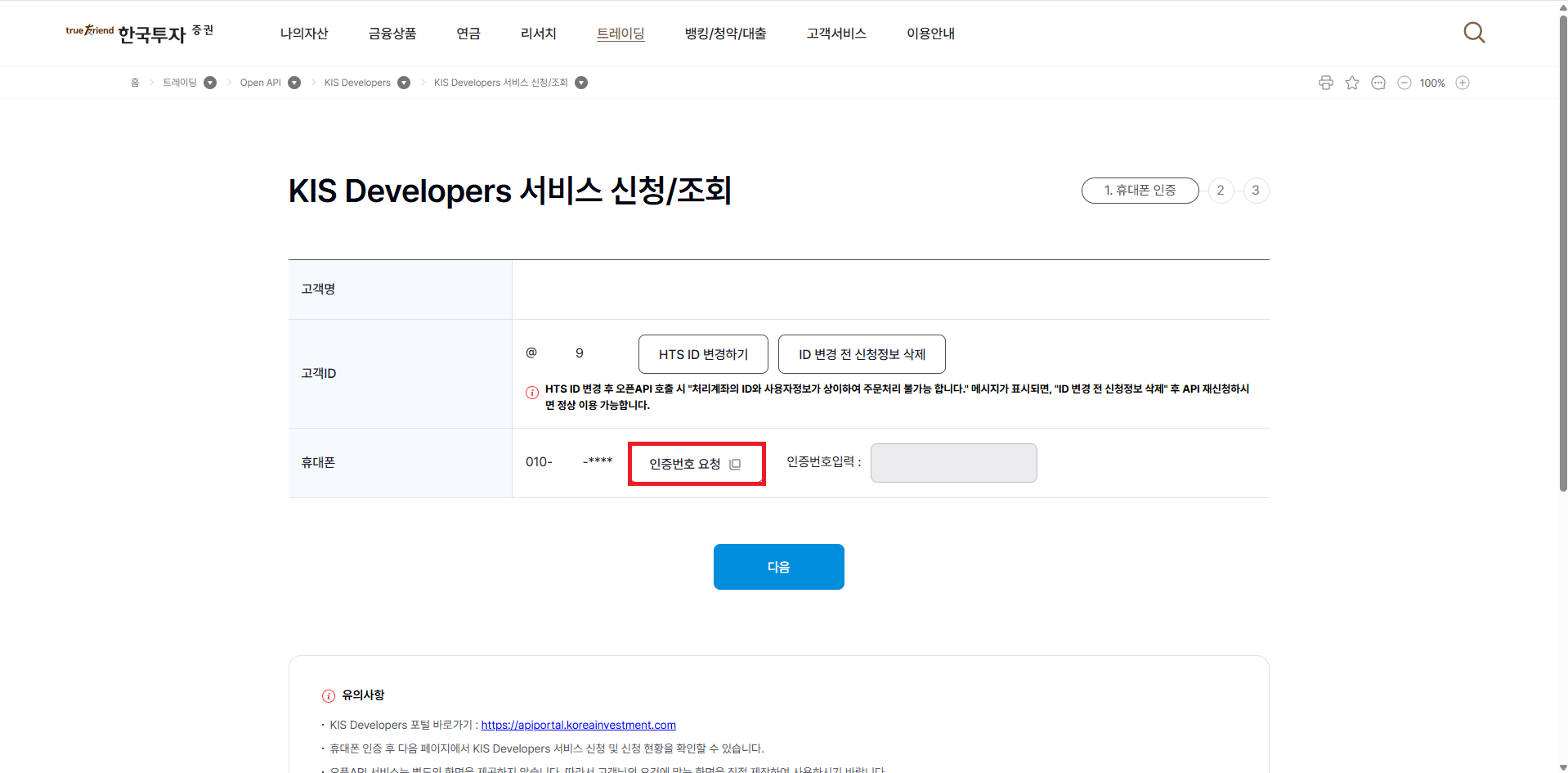
What to do on this screen

After signing in, open the API request menu and complete mobile phone verification. Pick your carrier, agree to the terms, then enter the SMS verification code.

Checkpoints

  • Select your carrier, agree to the terms, and confirm.
  • Request the SMS code, enter the 6-digit code you receive, and click Next.
  • Codes typically expire within 3–5 minutes — enter it promptly.

Next step: Pick real-trading account + account password auth

Swipe horizontally to inspect the desktop screenshot.

Open
Korea Investment & Securities PC web API setup step 2: Open API request → mobile verification
Find the menu or field that matches the step title in the screenshot, then follow the checkpoints on the left.
03한국투자증권 · PC web

Pick real-trading account + account password auth

What to do on this screen

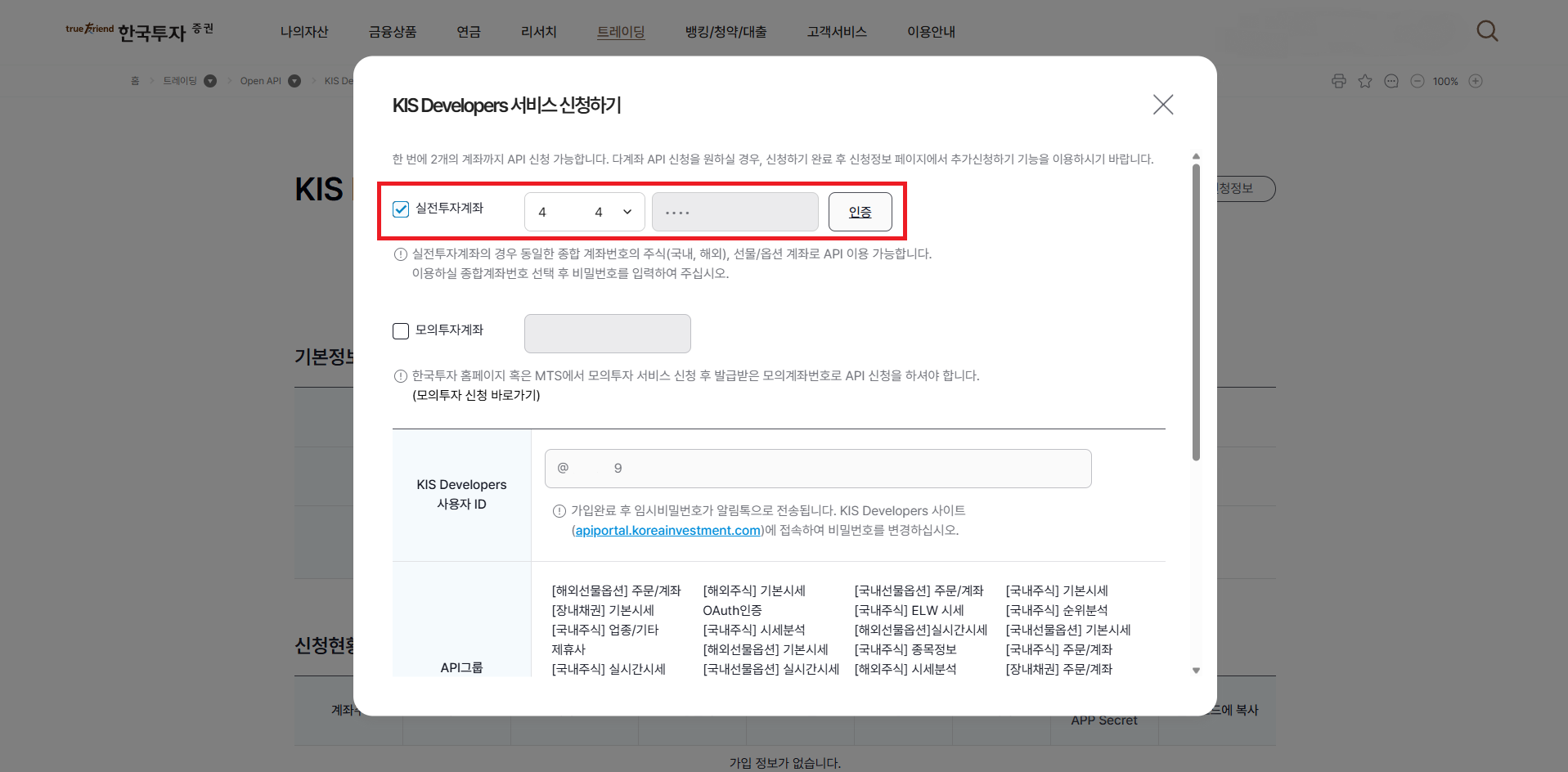
Check the required terms, select "real-trading account", choose your account, and enter the account password to authenticate.

Checkpoints

  • Enter only the part of the account number before the product code (e.g. 01).
  • If left blank, MOABOT uses 01 by default.
  • Prefer an account whose product code starts with 01 (general domestic equities).
  • The Open API app and the actual order account must belong to the same user.

Next step: Submit + authenticate via PC public certificate

Swipe horizontally to inspect the desktop screenshot.

Open
Korea Investment & Securities PC web API setup step 3: Pick real-trading account + account password auth
Find the menu or field that matches the step title in the screenshot, then follow the checkpoints on the left.
04한국투자증권 · PC web

Submit + authenticate via PC public certificate

What to do on this screen

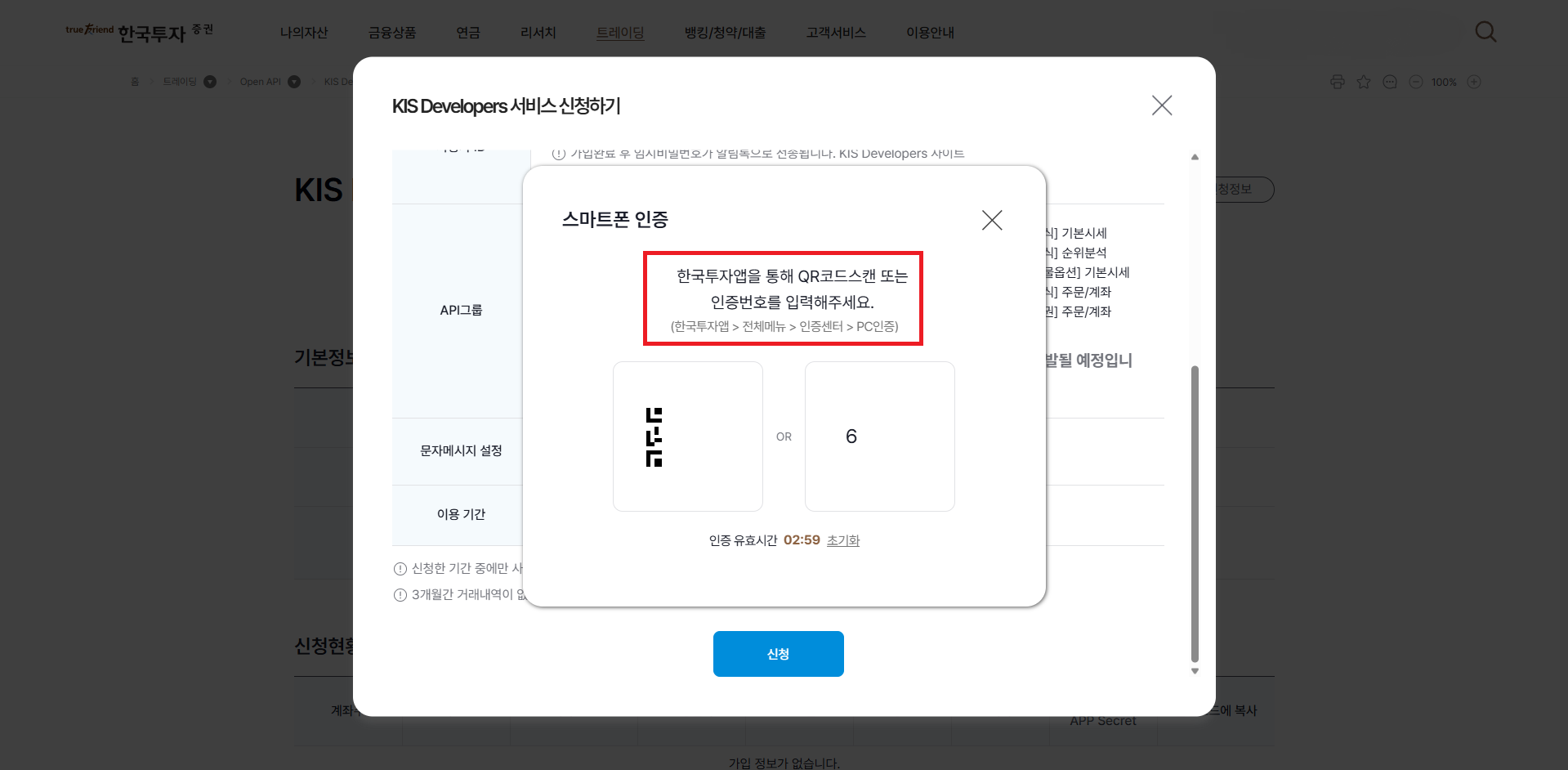
Click "Apply" to enter the verification step. KIS Open API is HTS-based, so MTS (mobile) authentication does not work — you must authenticate with a PC public certificate.

Checkpoints

  • MTS-only mobile auth cannot complete Open API issuance.
  • Use the public certificate registered on your PC to finish the application.
  • If you do not have a certificate, issue / register it through KIS HTS first.
※ HTS authentication, not MTS — only PC public certificate completes the request.

Next step: Copy the issued App Key and App Secret

Swipe horizontally to inspect the desktop screenshot.

Open
Korea Investment & Securities PC web API setup step 4: Submit + authenticate via PC public certificate
Find the menu or field that matches the step title in the screenshot, then follow the checkpoints on the left.
05한국투자증권 · PC web

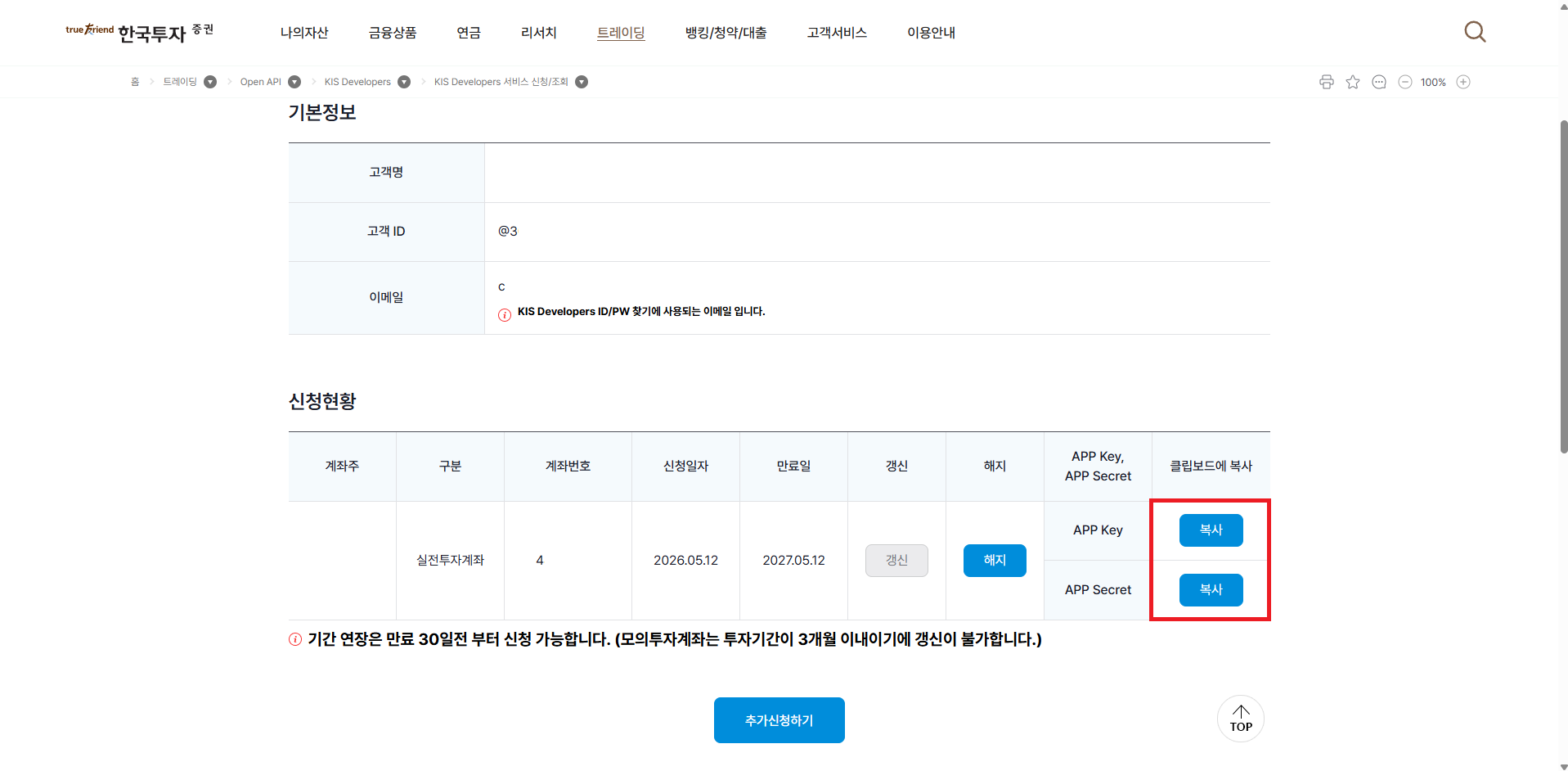
Copy the issued App Key and App Secret

What to do on this screen

Copy the App Key and App Secret issued on the screen. These are the values you will enter into the MOABOT Korea Investment settings.

Checkpoints

  • Do not leave the App Secret in public chats or shared notes.
  • Do not mix paper-trading and real-trading keys.
  • Do not enter a Korea Investment access token in MOABOT — the server issues it automatically.

Next step: Register the values in MOABOT + Telegram 2FA

Swipe horizontally to inspect the desktop screenshot.

Open
Korea Investment & Securities PC web API setup step 5: Copy the issued App Key and App Secret
Find the menu or field that matches the step title in the screenshot, then follow the checkpoints on the left.
06한국투자증권 · PC web

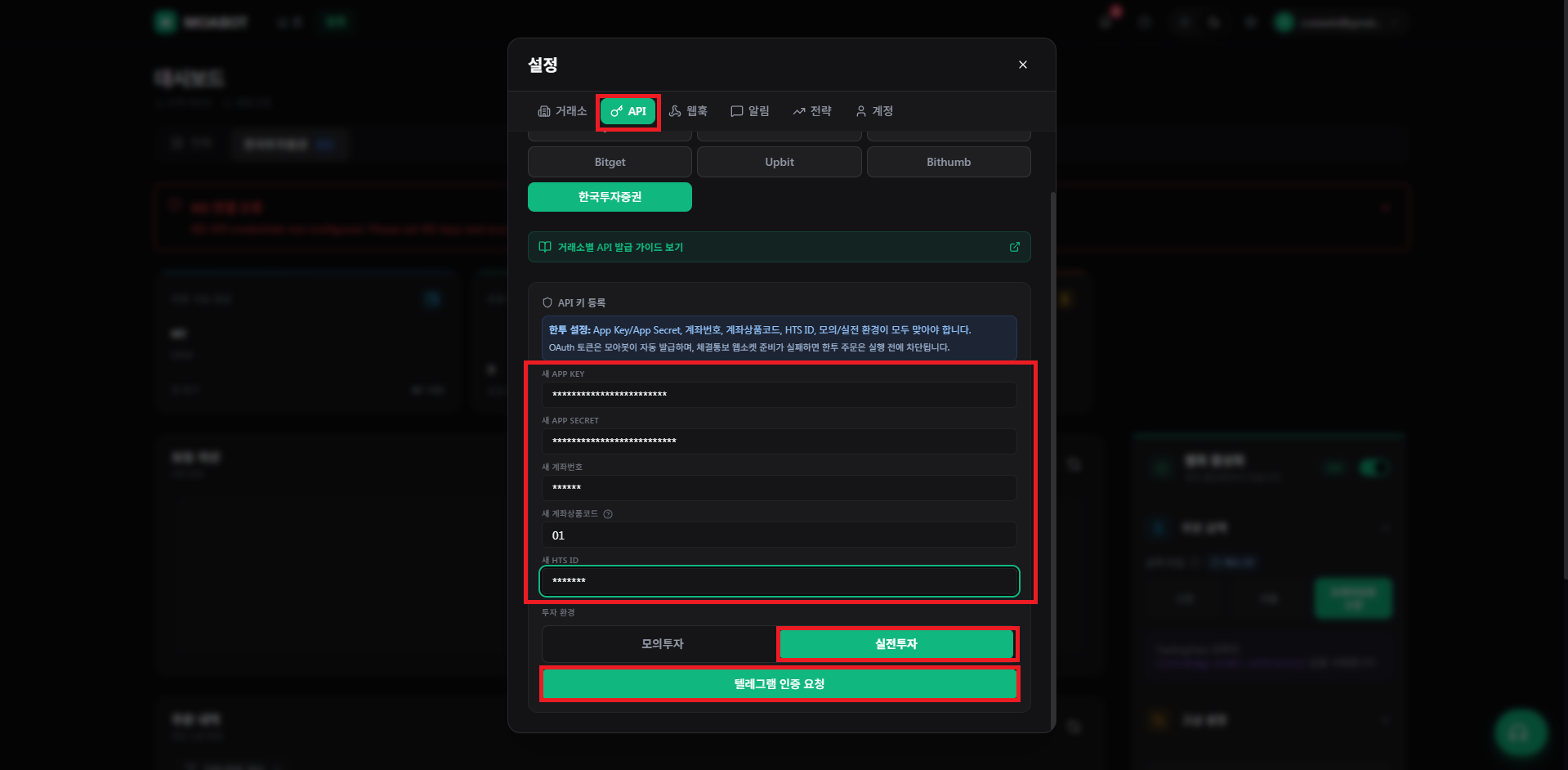
Register the values in MOABOT + Telegram 2FA

What to do on this screen

In the MOAHook Dashboard, open Settings (gear) → API tab → choose Korea Investment, paste your App Key, App Secret, account number (up to the part before the product code), HTS ID, and pick the environment (real or paper). Click "Request Telegram code", then enter the code you receive via Telegram and save.

Checkpoints

  • New saves default to paper trading — switch the toggle only when you mean real trading.
  • The HTS ID is different from the account number. A wrong value gets the fill-notice websocket rejected.
  • Account number may be entered as digits only without hyphens.
  • Saving triggers key validation and fill-notice readiness checks.

Next step: Check the TradingView webhook values

Swipe horizontally to inspect the desktop screenshot.

Open
Korea Investment & Securities PC web API setup step 6: Register the values in MOABOT + Telegram 2FA
Find the menu or field that matches the step title in the screenshot, then follow the checkpoints on the left.
07한국투자증권 · PC web

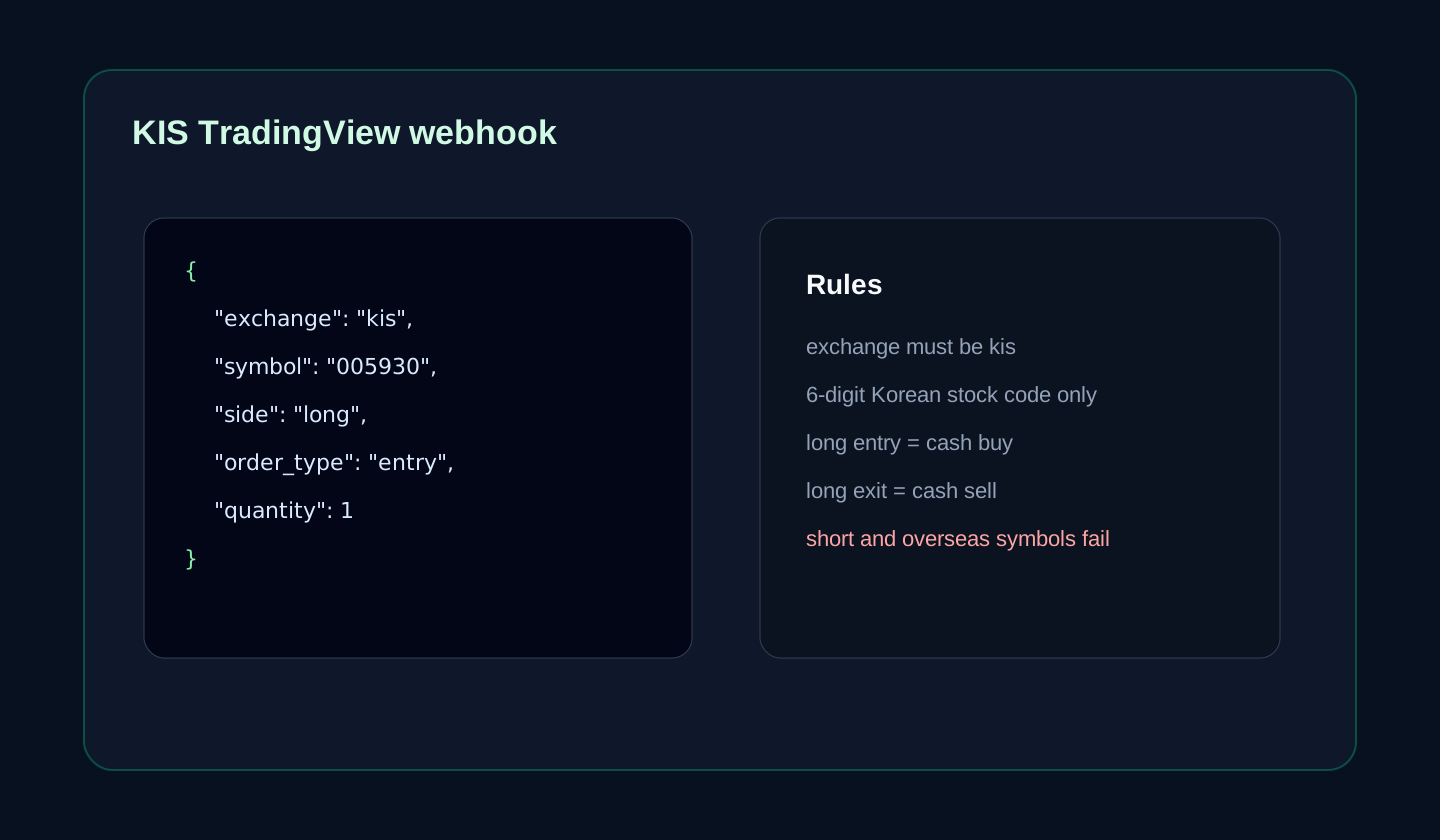
Check the TradingView webhook values

What to do on this screen

Use the default Strategy or Indicator alert example as-is.

Checkpoints

  • Use the chart {{ticker}} value for the symbol.
  • For strategy alert quantity, use {{strategy.order.contracts}}.
  • Real-time data for KRX / NASDAQ / CME must be purchased separately on TradingView so signals are not delayed.

Swipe horizontally to inspect the desktop screenshot.

Open
Korea Investment & Securities PC web API setup step 7: Check the TradingView webhook values
Find the menu or field that matches the step title in the screenshot, then follow the checkpoints on the left.

Next Step

Register the issued key in MOABOT

Open Settings in the MOABOT dashboard, choose the API tab, then enter each exchange value such as API Key, Secret Key, Passphrase, or Korea Investment account and HTS values. Telegram verification may be required before saving.

Open MOAHook dashboard
Support